
Sometimes, you may create a project that turns out exactly the way you hoped! When that happens, reordering is quick and easy. You can also copy a previous order to use as a staring point to create a similar order, or place a new order with the same specifications using a new print file.
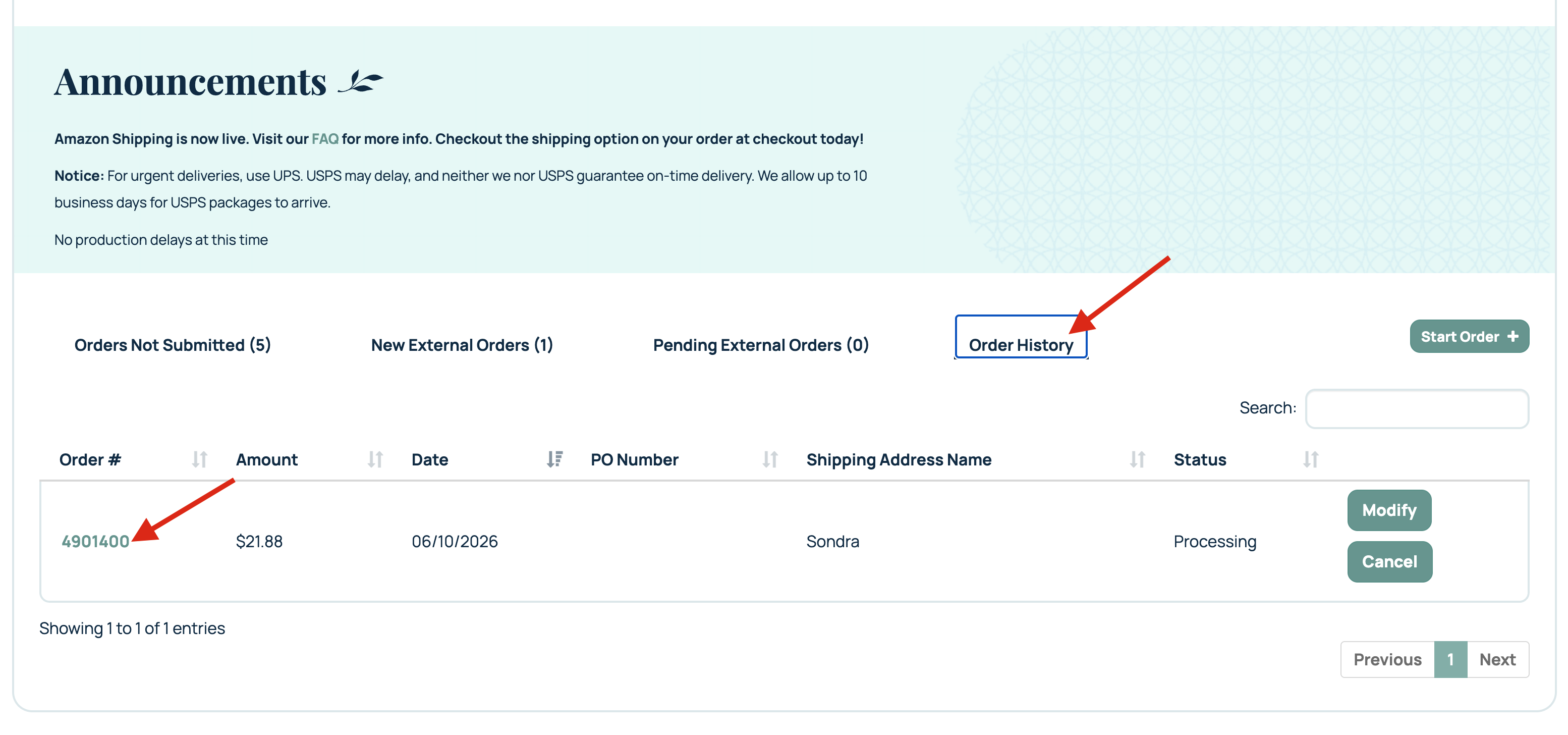
To copy a previous order into a new order, log in to the ordering portal and navigate to the Order History tab. Locate the order number you would like to duplicate and click it to open the details.
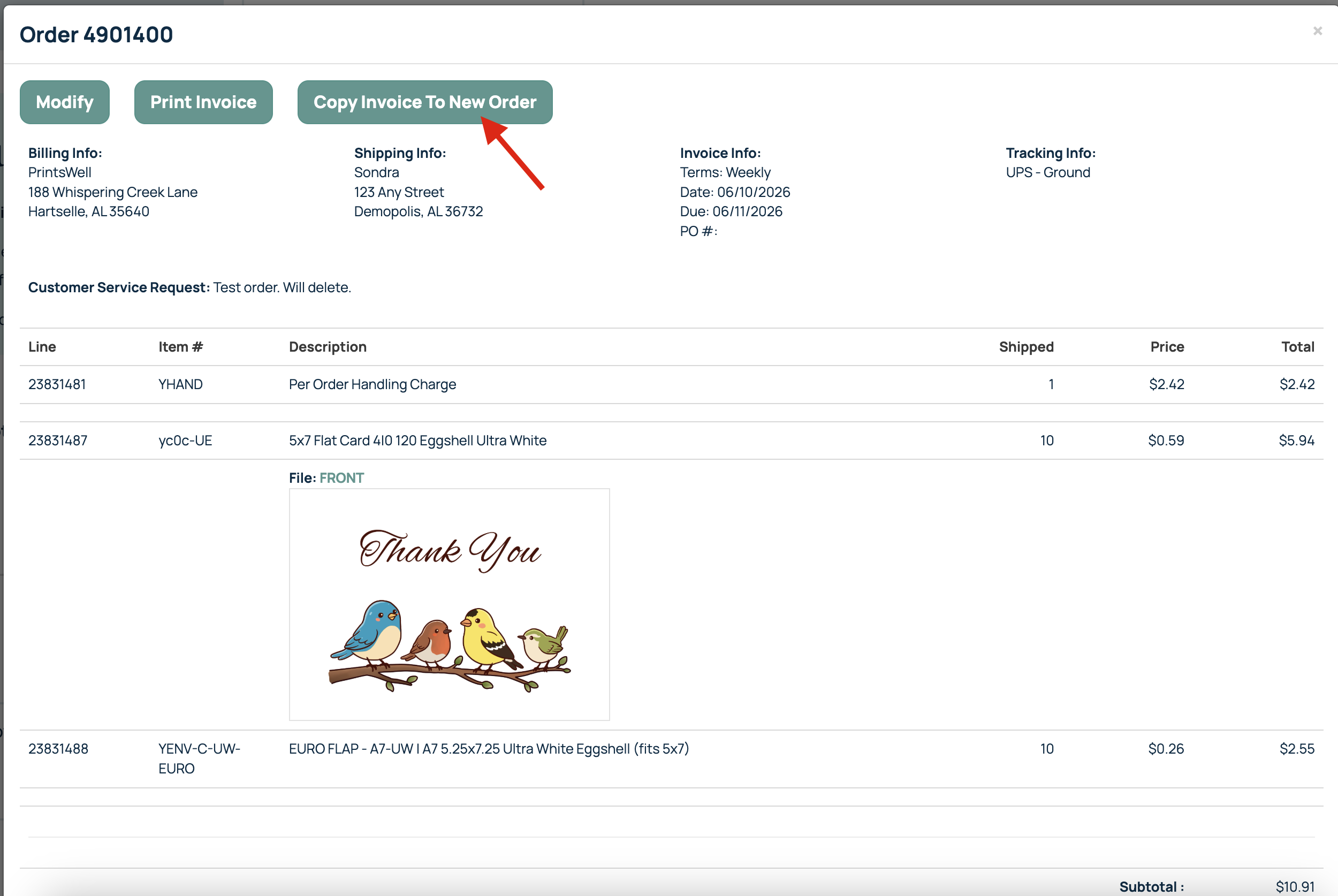
At the top of the page, select Copy Invoice to New Order. This will create a duplicate of the original purchase, and if available in our system, the files may be copied over as well.
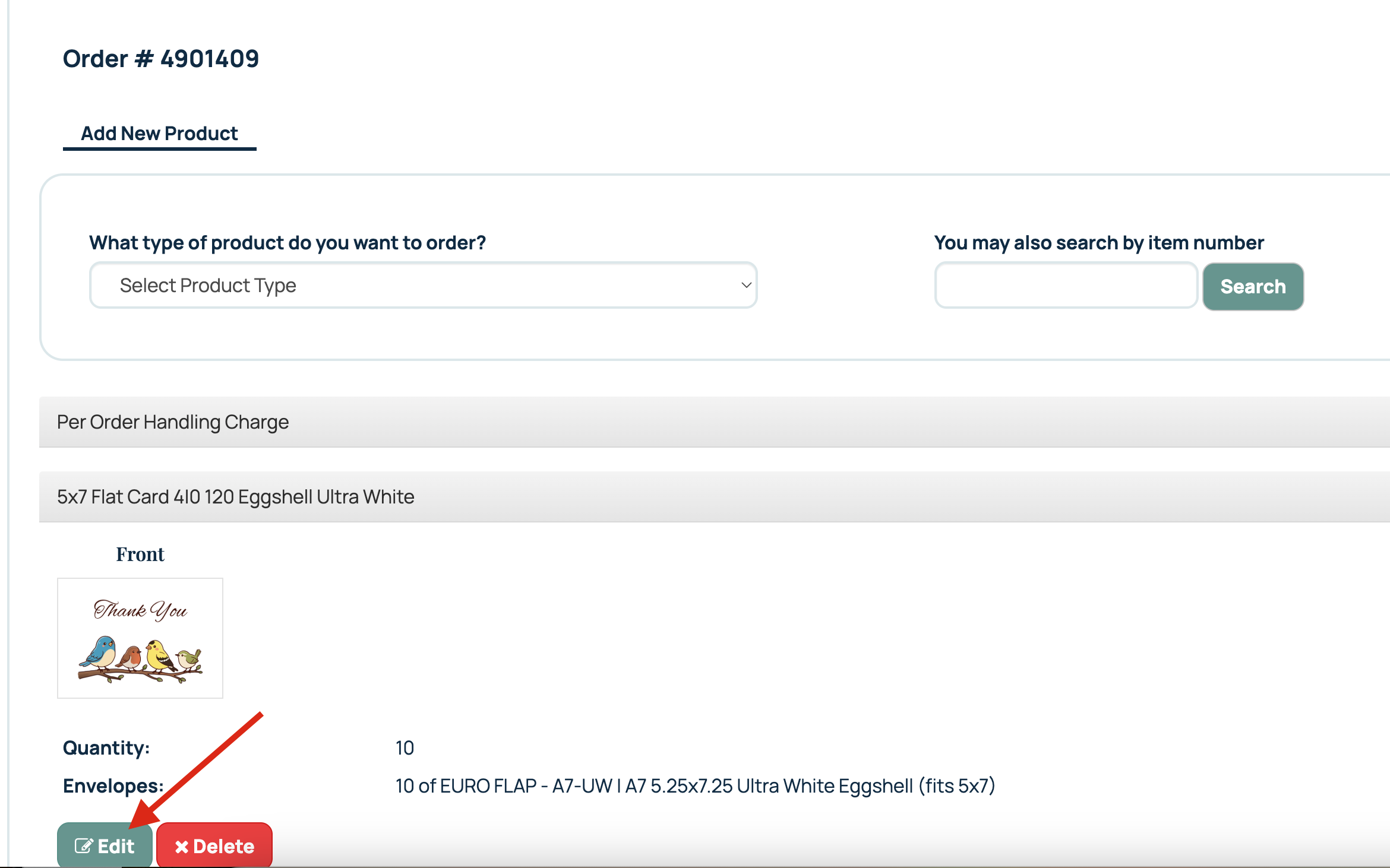
The duplicated version will appear under the Orders Not Submitted tab. From there, you can make any necessary changes to the existing products by clicking Edit below the product image, such as updating quantities or replacing files. Once everything on the new order is ready for submission, simply submit it as you normally would.
A previous order can be a great starting point for a new project. Simply select Copy Invoice to New Order to create a duplicate, then make any changes needed. You can add or remove items, update quantities, or replace files while keeping the original specifications intact.
For example, if you need 500 5x7 flat cards printed on the same paper stock as a previous order but with a new design, you can duplicate the original order and simply update the file attached to that item. This allows you to reuse existing settings and can save time during the ordering process.
Related Articles:
Was this article helpful?
That’s Great!
Thank you for your feedback
Sorry! We couldn't be helpful
Thank you for your feedback
Feedback sent
We appreciate your effort and will try to fix the article