Your Order History is more than just a list of past purchases - it's a helpful tool designed to make managing and reordering your projects quick and easy. Whether you're tracking a recent order or referencing a design from months ago, everything you need is right at your fingertips.
Find Orders Faster with Search
Need to locate a specific order? Use the search feature to quickly find submitted orders using a variety of details, including:
- Order Number
- Order Amount
- Order Date
- PO Number
- Shipping Address
This makes it easy to track down previous projects without scrolling through your entire order history.
Understanding Your Order Status
Each order includes a status indicator so you can see where it is in the production process.
- Processing – Your order has been received and is being prepared for production.
- In Production – Your order is actively moving through the printing and fulfillment process.
For additional details, simply click into any order. From there, you can review order information, view item details, and download previously submitted files whenever needed.
Need to Change Shipping?
You can update your shipping address or shipping method after submitting an order by selecting the Modify button within your order details. This option is available while your order is in Processing or In Production status.

Making a shipping change through the Modify feature will not delay your order, so you can update your information with confidence. You will find your Current Shipping Address and Current Shipping Method and select any necessary changes.
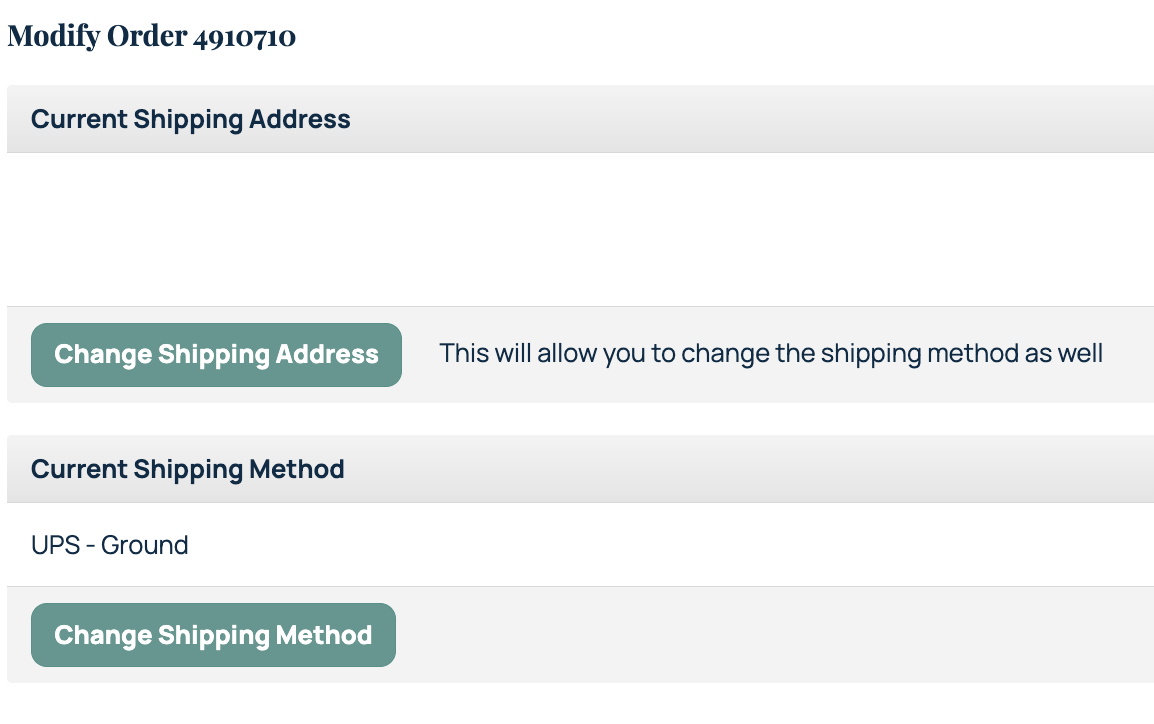
If the Modify button is no longer visible, your order has already moved into our packing department queue and online changes are no longer available. If you need to make an adjustment at that point, please contact our Customer Service team as soon as possible. We'll do our best to help before your package ships.
Need to Cancel an Order?
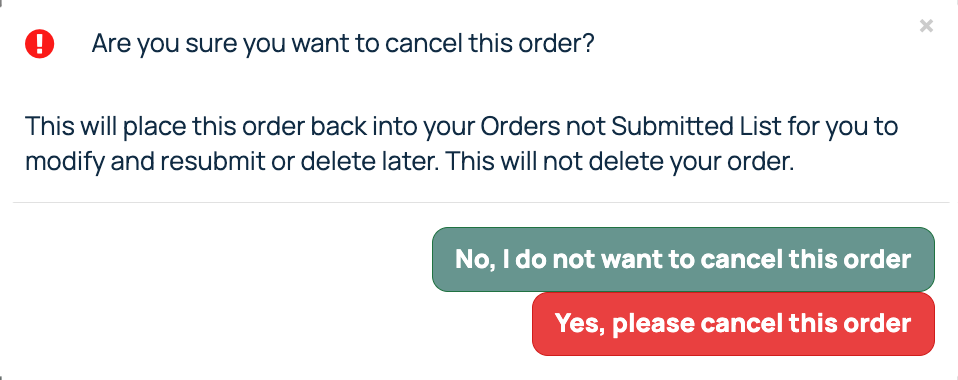
After an order is submitted, you'll have a 20-minute cancellation window. During this time, a Cancel button will be available within the order hi, next to the Modify button. Once that button disappears, the order has already moved into production and can no longer be canceled. For complete cancellation information, please see our dedicated cancellation article.

Reordering Made Simple
Loved a previous order? Use the Copy Invoice to New Order feature to duplicate it by clicking on the order number. After creating the new order, you can update quantities, add additional items, and even change the shipping address before submitting. It's a simple way to save time while maintaining consistency across repeat orders.

Your Order History is designed to help you work smarter, reorder faster, and keep all of your past projects organized in one convenient place.
Related Articles:
Was this article helpful?
That’s Great!
Thank you for your feedback
Sorry! We couldn't be helpful
Thank you for your feedback
Feedback sent
We appreciate your effort and will try to fix the article