The Orders Not Submitted section holds any orders you’ve started but have not submitted yet.
You can use this section to return to unfinished orders, work on multiple orders at the same time, or create mockup orders for quoting before submitting anything to production.
What You’ll See in Orders Not Submitted
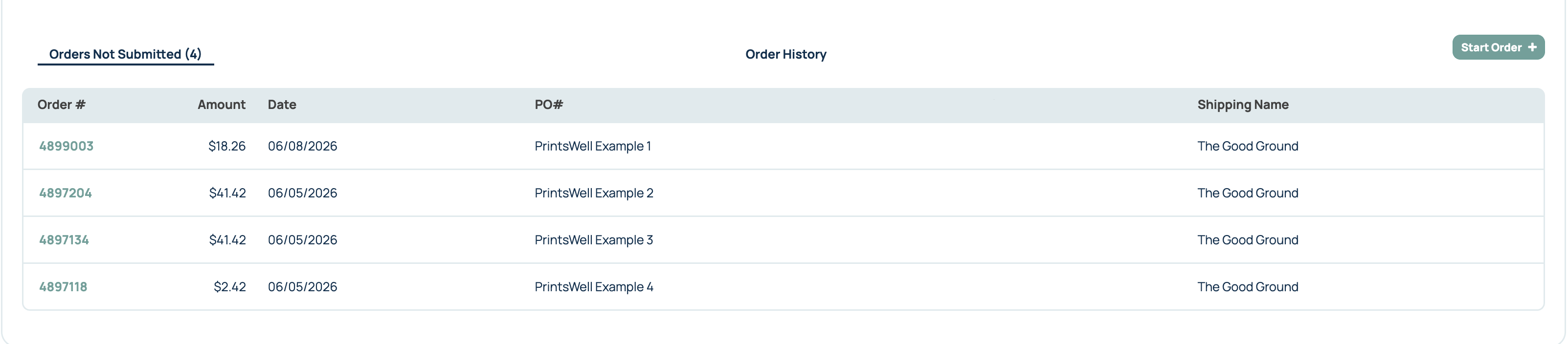
Each order in this section will show basic order details, including the order number, sub-total, date, PO#.
If you’re working on multiple orders, adding a reference name can help you quickly tell them apart.
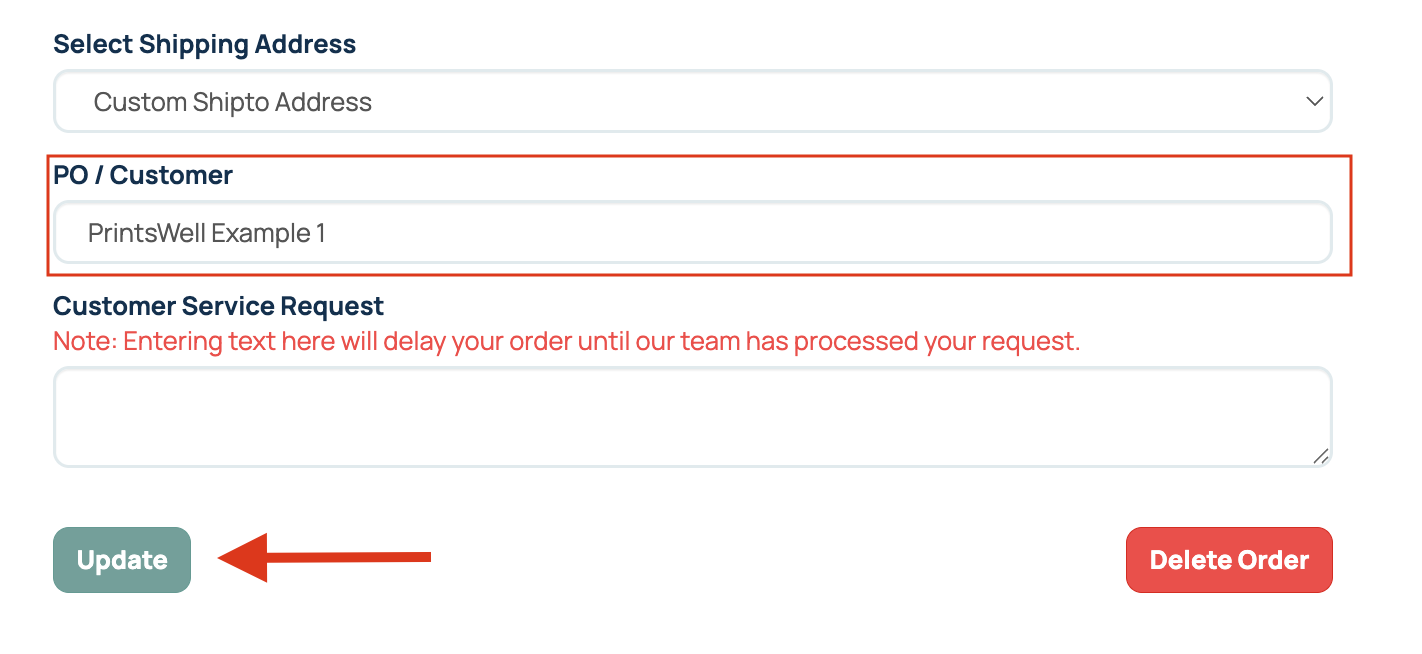
Add an Order Reference Name
You can add a reference name under the PO/Customer section within the order. After adding the name, be sure to click Update. These names are a great way for you to quickly identify your orders. They are not required and can be left blank.
This field is helpful for labeling orders with names you or your team will recognize, such as:
A customer name
A project name
An internal order number reference
Once added, the reference name will appear under PO# in the Orders Not Submitted section so you can easily identify the order later.
Work on Multiple Orders
You can have more than one order in progress at the same time.
This is helpful if you are:
Building orders for multiple customers and are not ready to submit for printing
Creating mockup orders for quotes
Saving an order to finish later
Orders will stay in this section until they are submitted or deleted.
Delete Orders You No Longer Need
To clean up your Orders Not Submitted section, you can delete orders you no longer need.
To delete an order:
Click into the order number.
Scroll to the bottom of the order.
Click Delete.

Deleting an order removes it from the Orders Not Submitted section.
Related Articles:
- Checkout & Order Submission Features
- How to Place an Order with PrintsWell
- Order History & Easy Reordering
Was this article helpful?
That’s Great!
Thank you for your feedback
Sorry! We couldn't be helpful
Thank you for your feedback
Feedback sent
We appreciate your effort and will try to fix the article