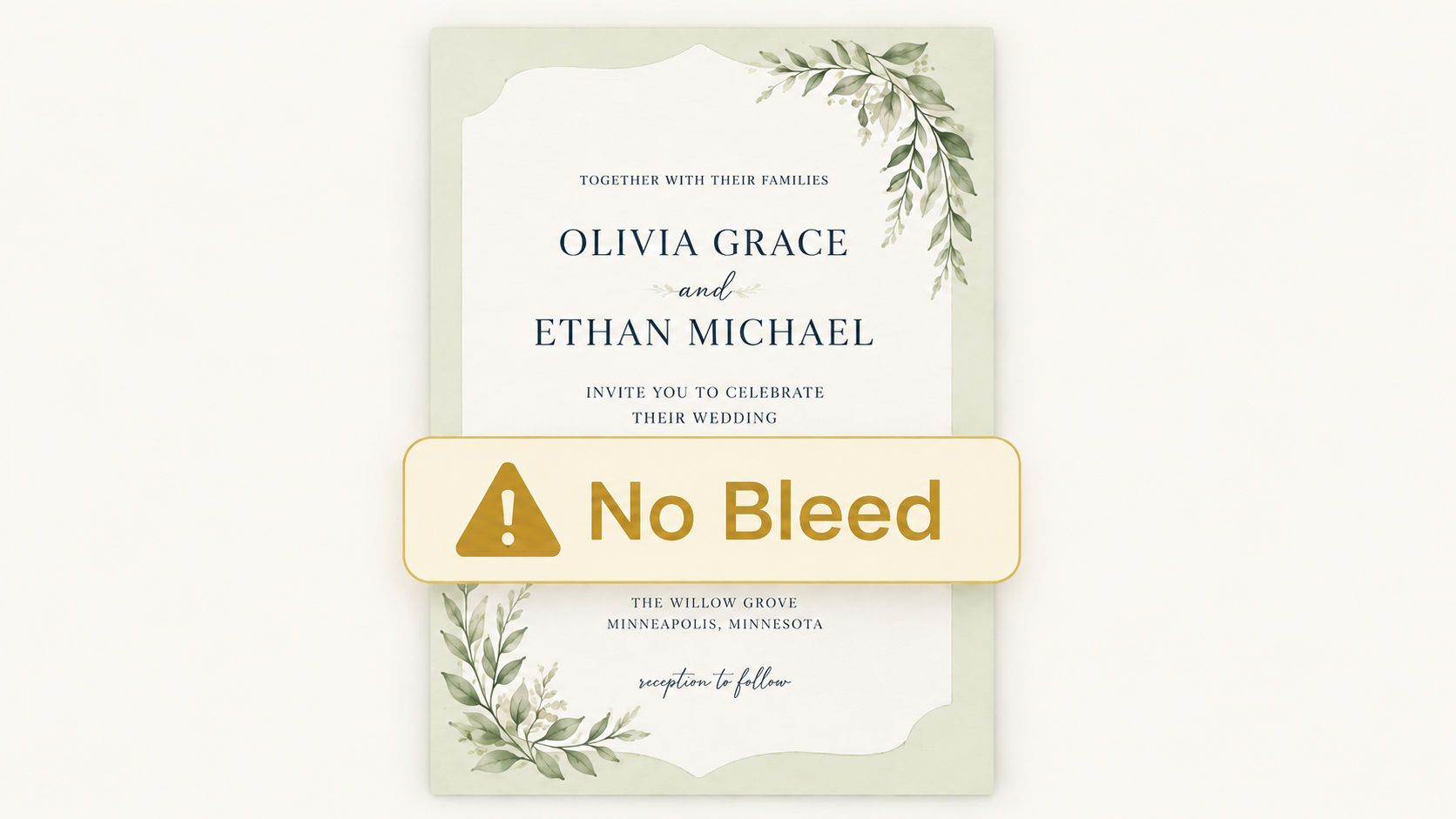
If your uploaded file is the same size as the finished product and does not include extra bleed space, you will see a warning message. This warning indicates that your file does not include the required bleed area.
What you will see if you upload a file without bleed
If you upload a file that is sized to the final trim size without including bleed, the Ordering Portal will display a warning message indicating that bleed was not detected. The Ordering Portal will allow you to proceed with a file that does not include bleed, which is why the message states that the file is "acceptable, but not recommended." However, whether the file is truly acceptable depends on the design itself.
If your design contains any printing that extend to the edge of the finished product, the file will need to include bleed to ensure the final printed piece trims correctly.
This warning serves as a reminder to review your file and determine whether bleed is necessary for your particular design.
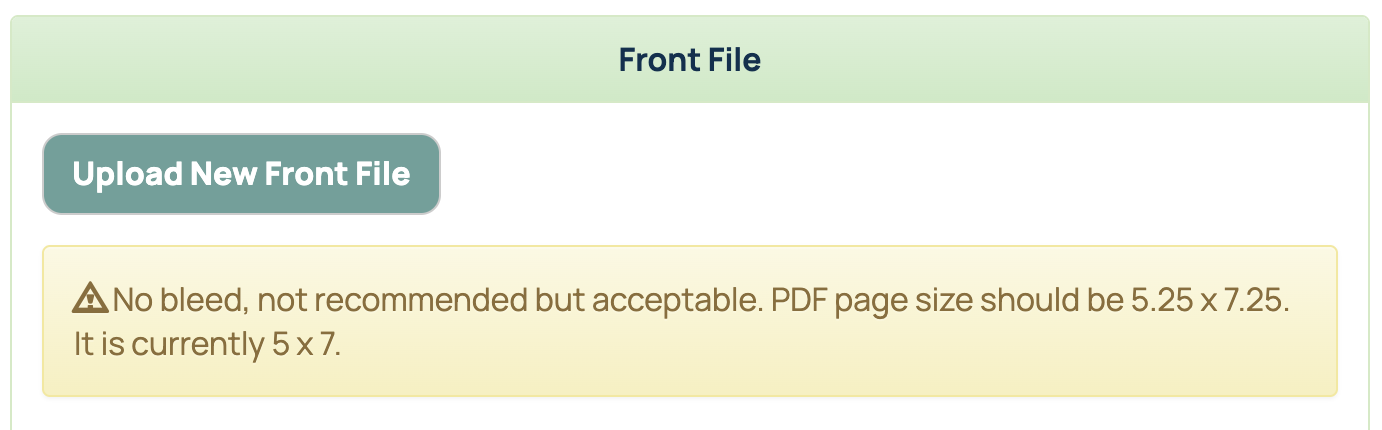
When is having no bleed acceptable?
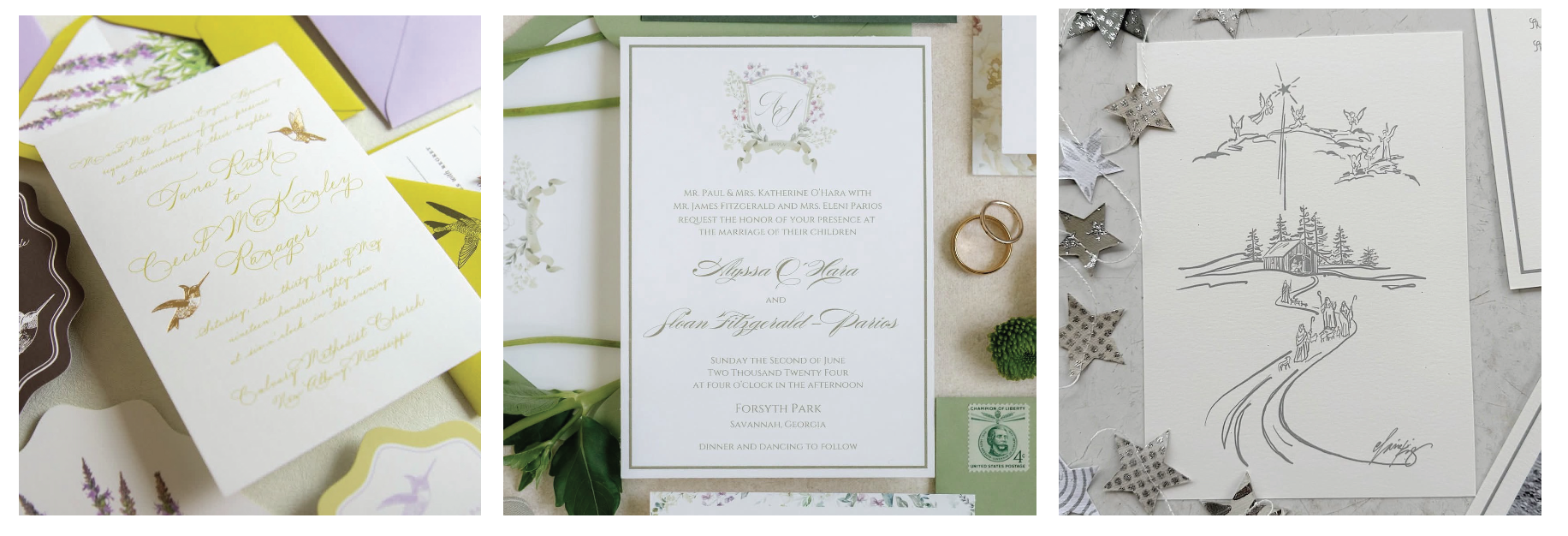
A file without bleed may be acceptable when the design does not contain any elements intended to print to the edge.
Common examples include:
- Designs with a completely white or blank background
- Designs that intentionally include white margins around all edges
In these situations, slight trimming variation will not affect the appearance of the final product because no artwork is expected to reach the edge.
A good rule of thumb for designing is to always design your files with the bleed in mind. This will avoid potential confusion or files being created incorrectly for future designs. When Should You Revise Your File?
You should revise your file if it contains:
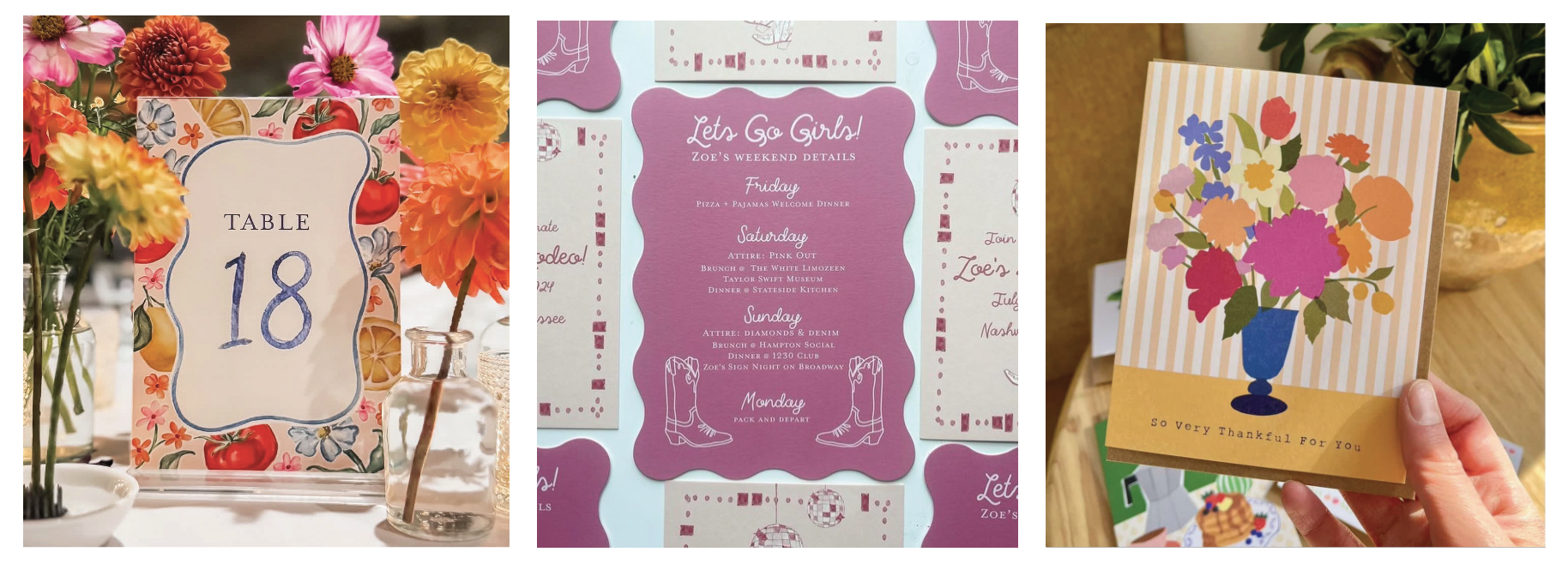
- Full-flood color backgrounds
- Photographs extending to the edge
- Borders near the trim line
- Patterns, textures, or artwork that continue off the edge
- Any design element intended to reach the finished edge of the product
Without bleed, these types of designs are at risk of showing thin white borders after trimming.
Troubleshooting Bleed Warning Message
The exact steps to troubleshoot this message depend on the design software you are using.
- Adobe Illustrator or Indesign - Your document or artboard should be set up at the final cut size of the product you are ordering. The 0.125" bleed should be added in your document settings, not by making the artboard larger. When exporting your PDF, double check that the bleed is included in the final file. Under Marks & Bleeds, make sure Use Document Bleed Settings is selected before exporting.
- Adobe Photoshop or Canva - The file size you create will need to include the bleed area. For example, if you are designing a 5x7 Flat Card, the file needs to be sized at 5.25x7.25 to include the bleed. (Tip: To figure out the file size with bleed, simply add 0.25" to the overall width and height!)
Related Articles:
For more information about preparing print-ready files, please see:
Was this article helpful?
That’s Great!
Thank you for your feedback
Sorry! We couldn't be helpful
Thank you for your feedback
Feedback sent
We appreciate your effort and will try to fix the article