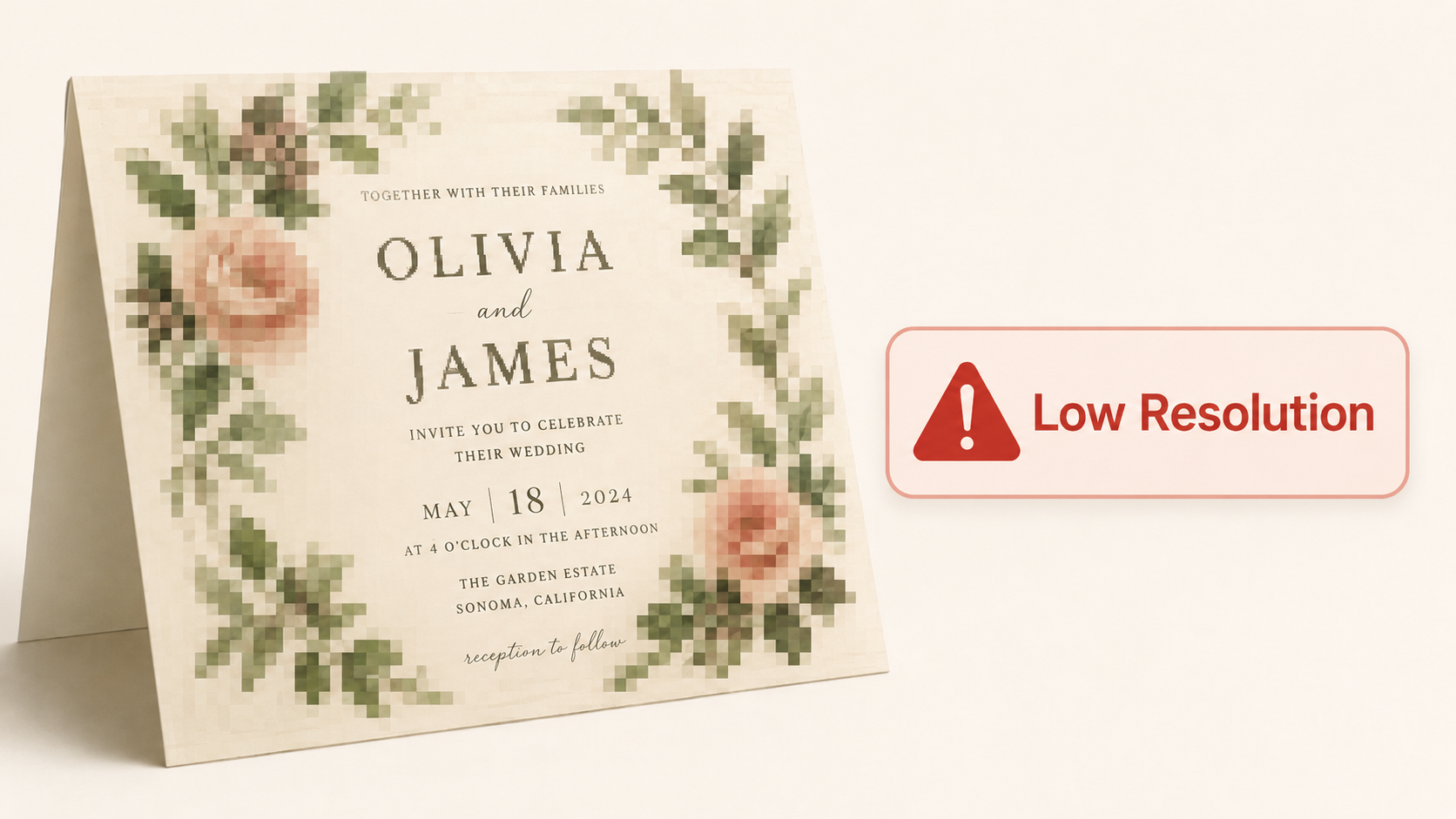
What Does the Image Resolution Upload Error Mean?
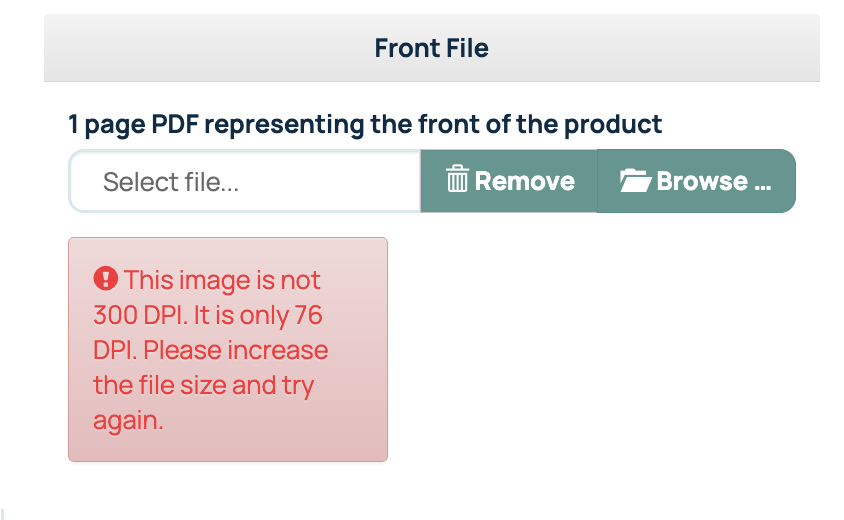
If you receive an Image Resolution Upload Error during upload, it means our system has detected that your image file may not contain enough detail for optimal printing.
This check is performed automatically on PNG, JPG, and TIFF files to help identify potential quality concerns before production begins.
How Resolution Affects Print Quality
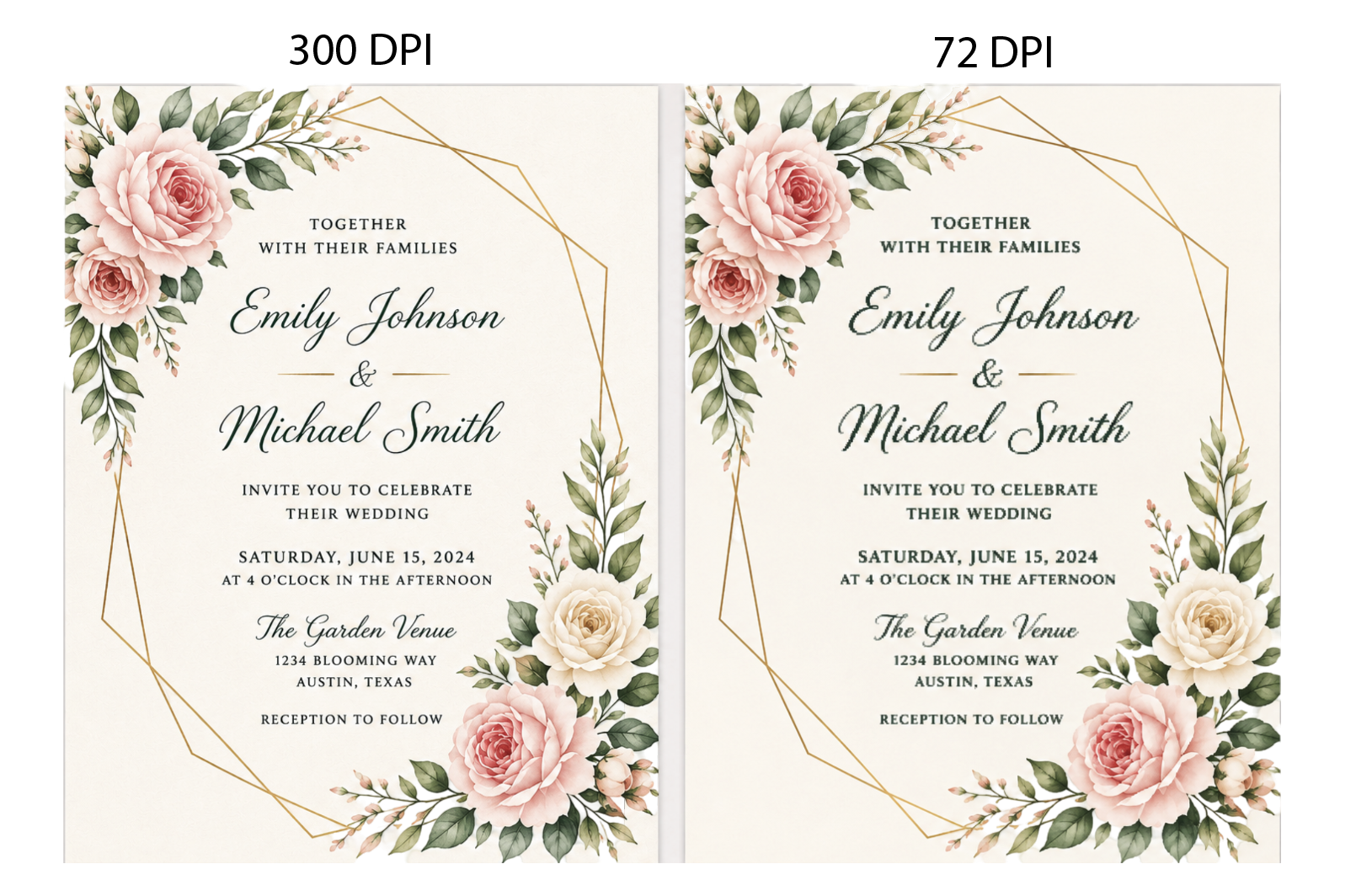
Resolution determines how much detail an image contains. The more detail available, the sharper and cleaner the printed result will appear.
Images that are too small for their intended print size can appear blurry, soft, or pixelated. While these issues may not be obvious on screen, they often become noticeable once the design is printed.
For best results, artwork should be created and exported at a minimum of 300 PPI or higher at its final print size. See our related article: Why Image Resolution Matters for Print Quality.
Why the Error Appears
The warning appears when the uploaded image falls below our recommended resolution requirements.
Rather than allowing a potentially low-quality image to move through production unnoticed, the system flags the file so you can review it before placing your order.
Finding a Higher-Resolution Image
In most cases, the solution is to replace the image with a higher-quality version.
You may be able to:
- Locate the original file.
- Request a larger version from the designer or photographer.
- Export the image again using higher-quality settings.
Starting with a better source file is the most effective way to improve print clarity.
Uploading a PDF Instead
We require print-ready PDFs, specifically PDF X/1a file format because they help preserve fonts, layout, and design elements. Unlike image files, however, PDFs do not receive the same automatic resolution check during upload.
As a result, you won't see an Image Resolution Upload Error when uploading a PDF, even if low-resolution images are included within the document.
To learn more about what file types we recommend see our related article: What File Type Should You Use for Printing?
Don't Forget the 300 DPI Requirement
Although PDFs bypass the resolution warning, the image quality requirements remain the same.
Any photos, graphics, or artwork placed within a PDF should still be prepared at 300 DPI to ensure a crisp, professional final product. Taking a few moments to verify image quality before uploading can help prevent unexpected results and ensure your design prints exactly as intended.
For further tips on creating a print-ready file, please refer to our file setup guidelines.
Related Articles:
- Why Image Resolution Matters for Print Quality
- Raster Images vs. Vector Graphics
- File Size Error: Incorrect Length or Width
Was this article helpful?
That’s Great!
Thank you for your feedback
Sorry! We couldn't be helpful
Thank you for your feedback
Feedback sent
We appreciate your effort and will try to fix the article