The PPI (pixels per inch) of your images directly impacts how clear and sharp your final printed product will be. The lower the PPI, the more grainy, blurry, or pixelated your print will appear. Higher PPI means more detail and a cleaner, more professional result.
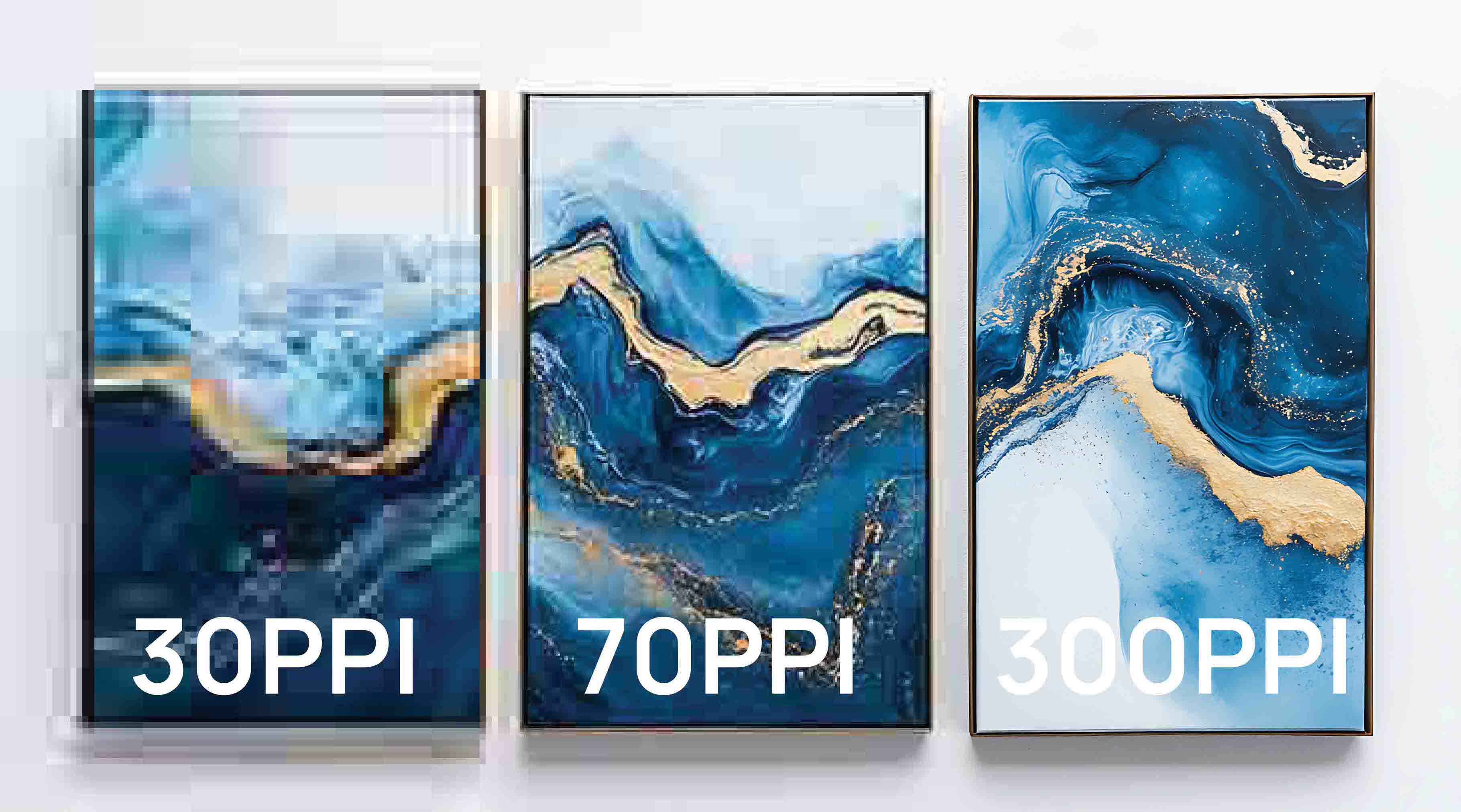
What PPI should my file and images be?
For the best print quality, your file and all images within it should be at least 300 PPI at final size.
- 300 PPI at final size, you can expect a crsip, clean print
- 70 PPI, the image will be a little soft
- 30 PPI, the image will be blurry, dull, or hazy
You can use images up to 1200 PPI, but keep in mind:
- Higher PPI means larger file size
- Larger files may be harder to upload or manage
Our Ordering Portal accepts files up to 512MB, so balancing quality and file size is important.
PPI vs. DPI: What’s the Difference?
PPI (pixels per Inch)
Refers to digital images on screens
Measures how many pixels are packed into one inch
Determines how much detail your image contains
- Think of PPI as your file's digital resolution
DPI (Dots per Inch)
Refers to printing
Measures how many ink dots a printer will place in one inch
Determines how smoothly your image is printed
- Think of DPI as printer output quality
Design programs like Photoshop use PPI. When you set your file to 300 PPI, the printer translates that into the appropriate DPI for high-quality output.
How PPI Affects Your Printed Product
Printing presses reproduce exactly what is in your file. If your image has low resolution, the press will print a high-quality version of that same low-quality image.
The printer cannot add detail that is not already there.
Why Does My Image Look Good on Screen but Print Poorly?
Most screens display images at around 72 to 150 PPI, which is much lower than print requirements. Because of this, even low-resolution images can appear sharp on your screen.
Printing requires far more detail. When a low-resolution image is printed, the lack of pixel data becomes visible, resulting in a dull, blurry, or hazy appearance.
Best Practices for Print-Ready Files
- If your design program allows, set your document to at least 300 PPI at final size
- Double-check all placed images for resolution
- Avoid enlarging low-resolution images
- Export your file at the correct dimensions and resolution
Related Articles:
Was this article helpful?
That’s Great!
Thank you for your feedback
Sorry! We couldn't be helpful
Thank you for your feedback
Feedback sent
We appreciate your effort and will try to fix the article