Changes can easily be made to an order before production begins. Once an order enters production, editing options become much more limited since printing is one of the fastest parts of our production process.
Making a change to your order before production begins
If your order has not yet entered production, you can make changes by clicking the Cancel button next to the order in your Order History.
When you click Cancel, the order will move back to the Orders Not Submitted tab and be assigned a new order number. From there, you can make any necessary edits and resubmit the order when you are ready.
If the Cancel button is no longer available, the order has already entered production and can no longer be edited this way.
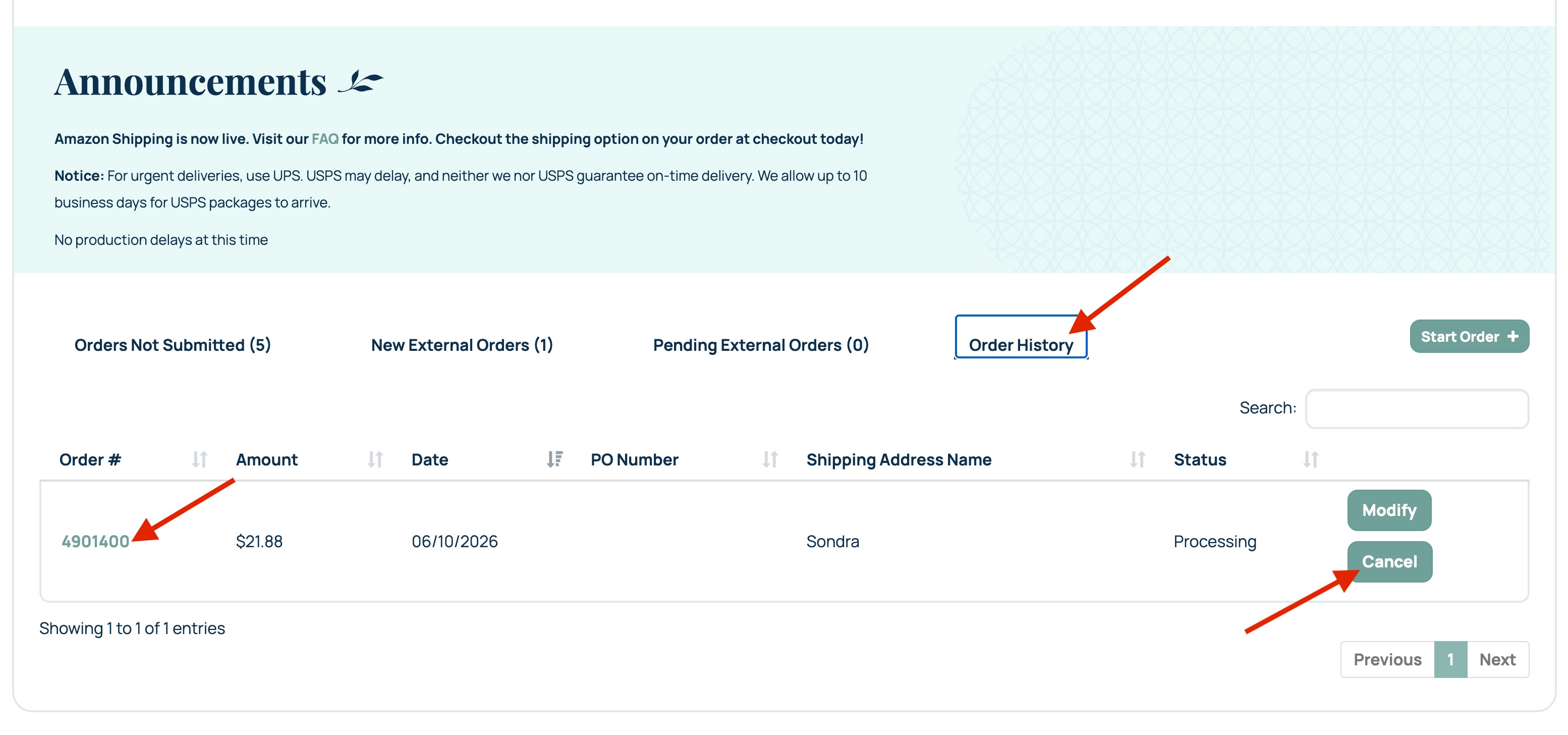
Clicking the cancel button will not delete your order or the files attached to your order, it will move the order back to Orders Not Submitted so you can make changes. Making a change to your order after production begins
After production begins, there will be very limited changes that can be made to the order. Changes that can be made after production begins include:
- Change the shipping method
- Update the shipping address
- Add quantity to an existing item
- Add a new product to the order
To change shipping method or shipping address, click on the Modify button. From there you will be able to make changes to the shipping address or shipping method for this order. These changes can be made up until we create a shipping label for the package, which is the last step of our production process. Once the Modify button disappears, no further edits can be made.
To increase the quantity of an item or add a new product to an existing order, please contact our Customer Success Team at fulfillment@printswell.com. Our team will review the order's production status to determine whether additions can still be accommodated. Please note that changes requested after an order has been submitted are subject to a $5 order edit fee and may add 1–2 business days to the production time of the order.
Related Articles:
Was this article helpful?
That’s Great!
Thank you for your feedback
Sorry! We couldn't be helpful
Thank you for your feedback
Feedback sent
We appreciate your effort and will try to fix the article