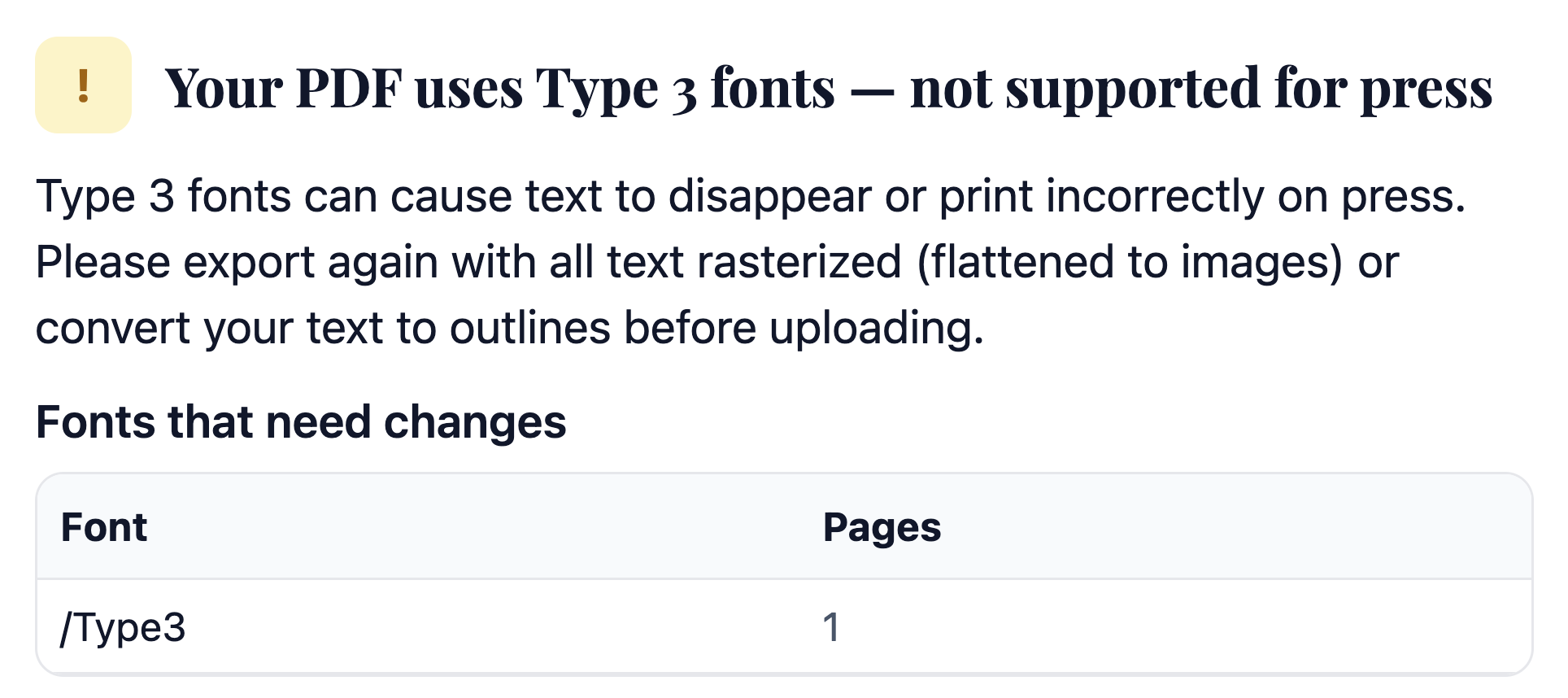
Nothing is more frustrating than creating a beautiful design only to discover a font error when it's time to print. One culprit could be the presence of Type 3 fonts in your PDF. Unlike standard fonts, Type 3 fonts don't use true letterform outlines, so they can cause missing text, font substitution, or printing errors when your file reaches the printer.
The good news: Type 3 fonts are rare in modern design software, and Canva and properly exported Adobe files are usually safe. Current versions of these programs simply don't support this font type. They're more likely to come from older or niche software, a third-party PDF compressor or optimizer site, or specific live text effects in Illustrator (more on that below).
What Are Type 3 Fonts?
Type 3 fonts are an older font format that doesn't follow the same rendering standards as modern font technologies. Because of this, text can appear differently in print than it does on screen.
Most professional print workflows are designed to work with modern font formats such as Type 1, TrueType, and OpenType fonts. These formats are widely supported and help ensure your design prints as expected.
To learn more about what are Type 3 fonts and why they can cause printing problems, see our related article: Why Type 3 Fonts Can Cause Printing Issues
Avoid Applying Strokes to Live Text
Whenever possible, keep text fill-only. If your design requires a stroked appearance and you are working in Illustrator, go to Type > Create Outlines first to convert the text into vector shapes, then use Object > Path > Outline Stroke or Offset Path to apply the stroke effect.
This order matters: outlining the text first removes the live font data that causes Type 3 issues in the first place.
Expand Text Effects Before Exporting
Special effects such as drop shadows, gradients, brushes, and appearance effects can also trigger Type 3 fonts.
Before exporting your file, use Object > Expand or Expand Appearance. This converts effects into vector artwork, creating a more predictable print file.
Use the Right PDF Export Settings
Export settings play an important role in print quality.
When saving your file as a PDF, choose PDF/X-1a. These industry-standard presets are designed for professional printing and can help reduce font-related issues during production.
The Safest Option: Convert Text to Outlines
When absolute print reliability is your goal, converting all text to outlines is the safest solution.
Outlining removes fonts from the file entirely, eliminating font embedding and substitution concerns. While outlined text can no longer be edited and very small text may lose some sharpness, it remains one of the most dependable ways to ensure your design prints exactly as intended.
To learn more about outlining fonts, see our related article: What Does “Outlining Fonts” Mean?
Final Thoughts
Type 3 font errors are often easy to avoid once you know what causes them. By preparing your text correctly, expanding effects, and using proper PDF export settings, you can create cleaner files and enjoy a smoother printing experience from start to finish.
Was this article helpful?
That’s Great!
Thank you for your feedback
Sorry! We couldn't be helpful
Thank you for your feedback
Feedback sent
We appreciate your effort and will try to fix the article