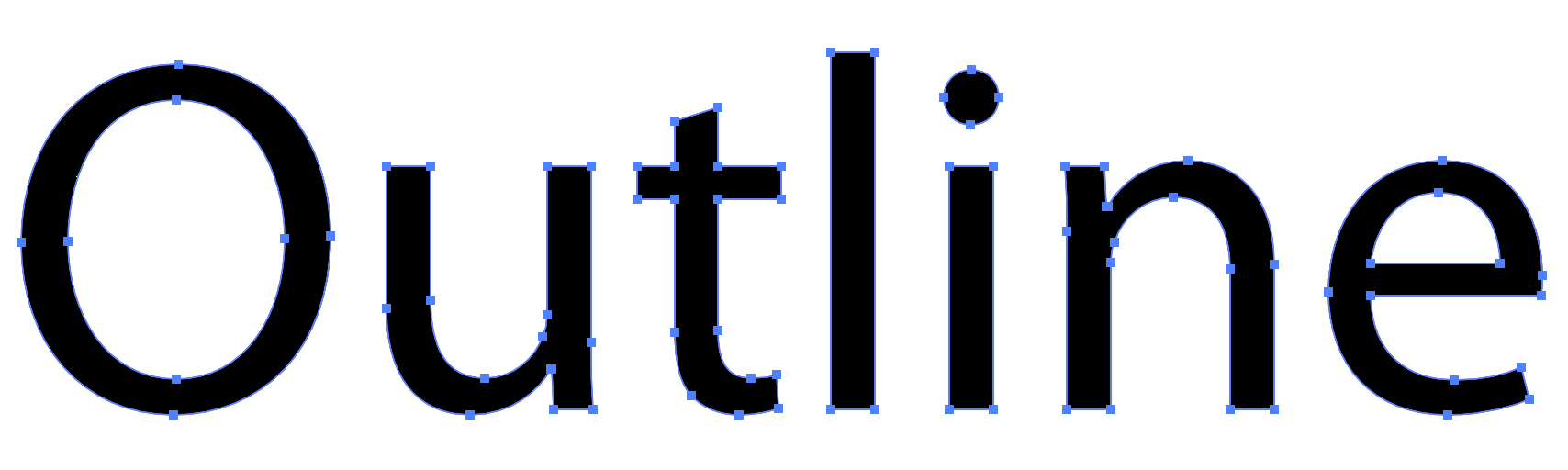
If you’ve ever been asked to “outline your fonts” before printing and thought wait… do they just mean make it bolder? You’re not alone.
So… What Is Outlining Fonts?
When you outline fonts, your text is converted from editable type into vector shapes. In other words, the letters are no longer treated as live text. They become artwork.
This helps preserve the appearance of your text when sending a print file, since it removes the risk of font substitution or unexpected text changes.
Important: Always save an editable version of your file before outlining fonts.
Why Outlining Fonts Matters for Print
Outlining fonts ensures your design prints exactly as intended. If a printer doesn’t have your font, it can be replaced, causing layout shifts or design changes. This means the text no longer depends on the original font file to display correctly.
By outlining, your text becomes a fixed part of the design, preventing substitutions and keeping everything consistent.
When to do it:
As a fail safe if you're unsure the fonts are embedded in your print file.
We recommend saving print-ready files as PDF/X-1a whenever possible. This format should embed fonts by default, which helps prevent common font-related issues.
Outlining Fonts vs. Embedding Fonts: What’s the Difference?
Both methods help preserve the appearance of your text, but they work differently.
- Embedding fonts keeps the font data inside the PDF. This is generally preferred because your text stays editable.
- Outlining fonts converts the text into shapes. This removes font dependency completely, but the text is no longer editable.
In general, embedding is best. Outlining is the backup if you are unsure your fonts are embedded.
How to Outline Fonts
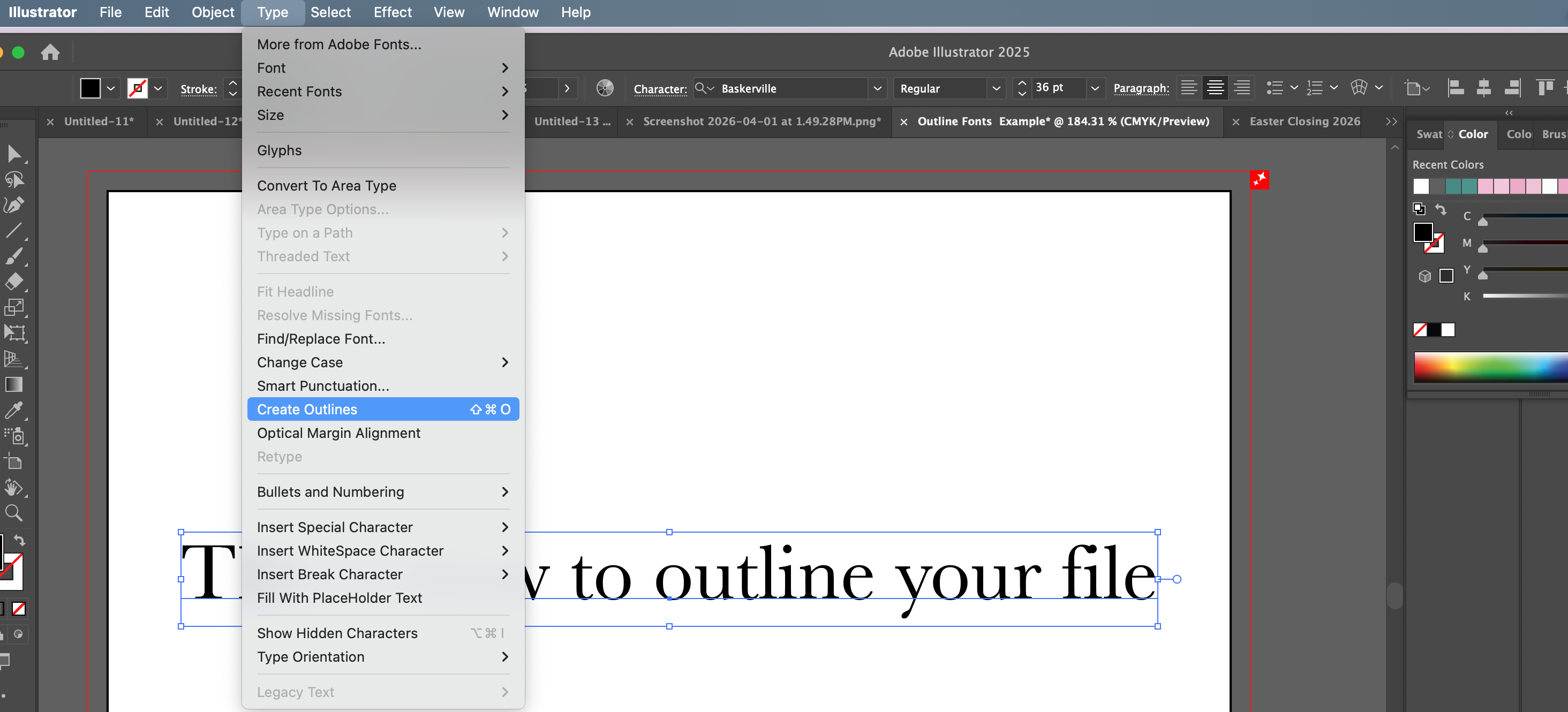
Adobe Illustrator or InDesign
- Select your text
- Go to Type → Create Outlines
Done! Your text is now converted to shapes.
Adobe Photoshop
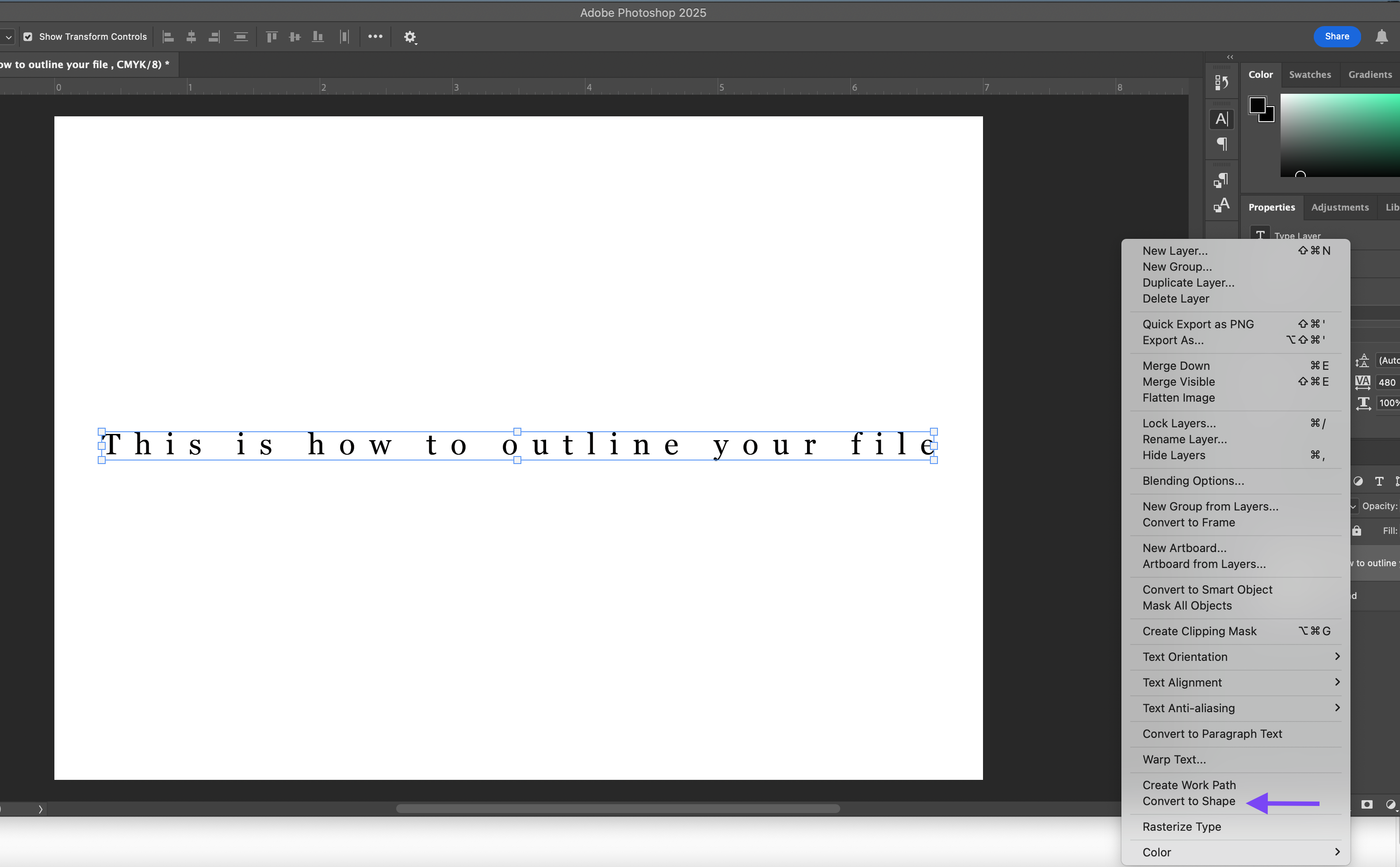
- Select your text layer
- Right-click and choose Convert to Shape
This turns your text into a shape.
Canva
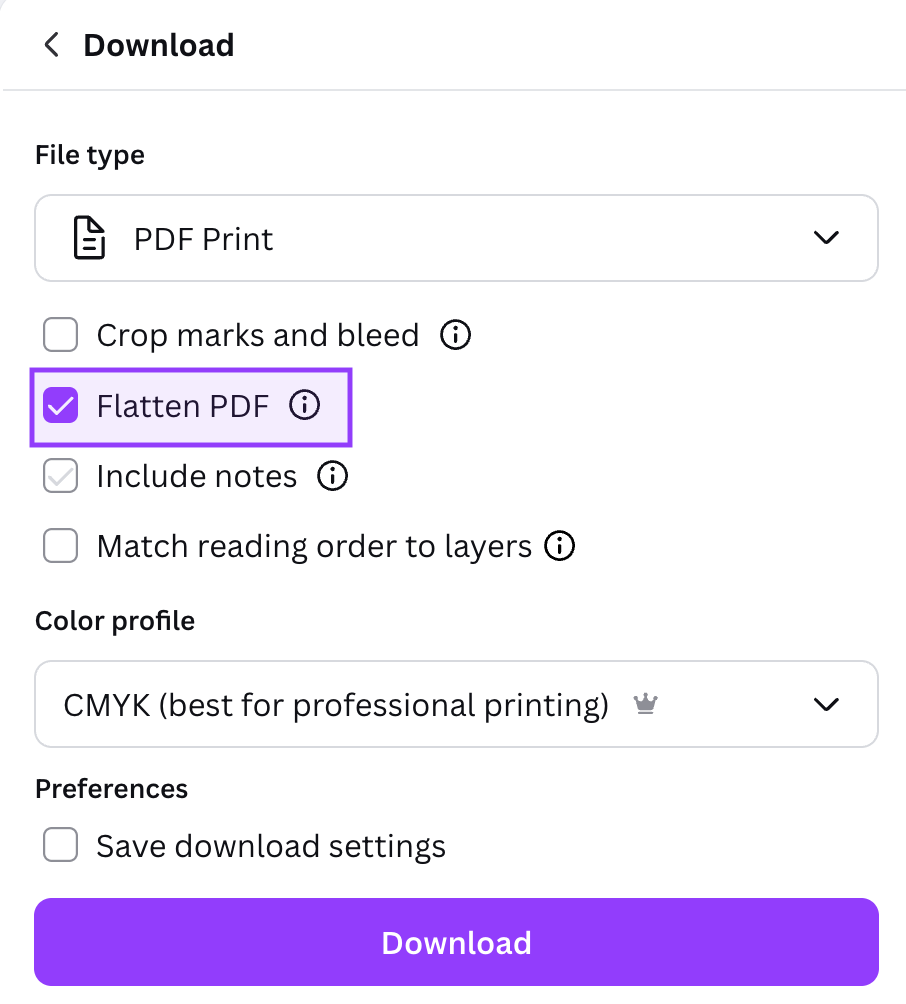
Canva does not offer a way to outline fonts.
If you are creating your file in Canva, choose the Flatten PDF option when exporting. This helps preserve the appearance of your text and design elements in your final file.
Related Articles:
Was this article helpful?
That’s Great!
Thank you for your feedback
Sorry! We couldn't be helpful
Thank you for your feedback
Feedback sent
We appreciate your effort and will try to fix the article