The front of your design sets the stage, but a well-designed back completes the piece! Setting up your back file correctly ensures your final printed product looks exactly as intended. This is especially important for folded cards, gift tags, bag tags, and any variably printed projects.
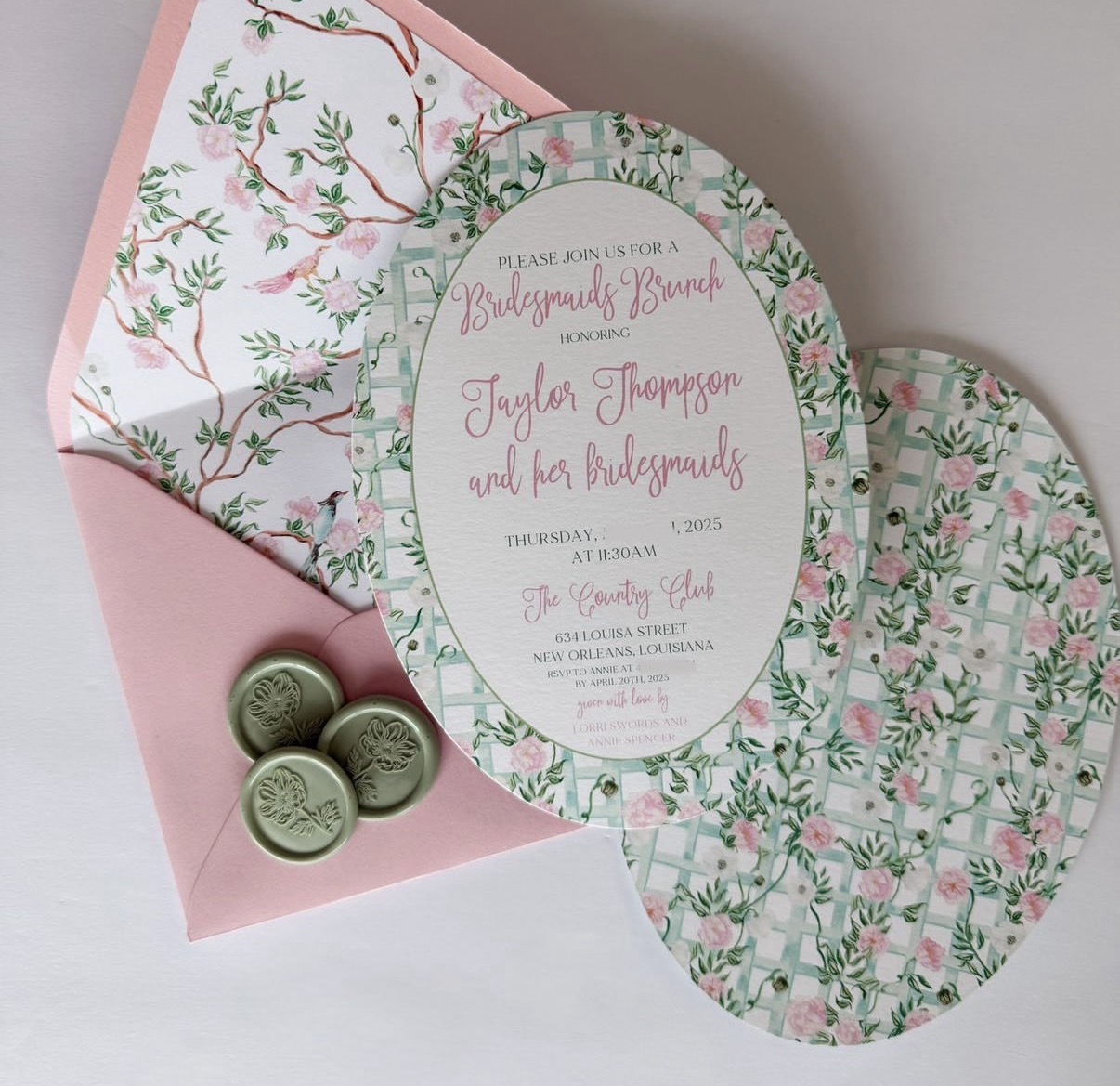
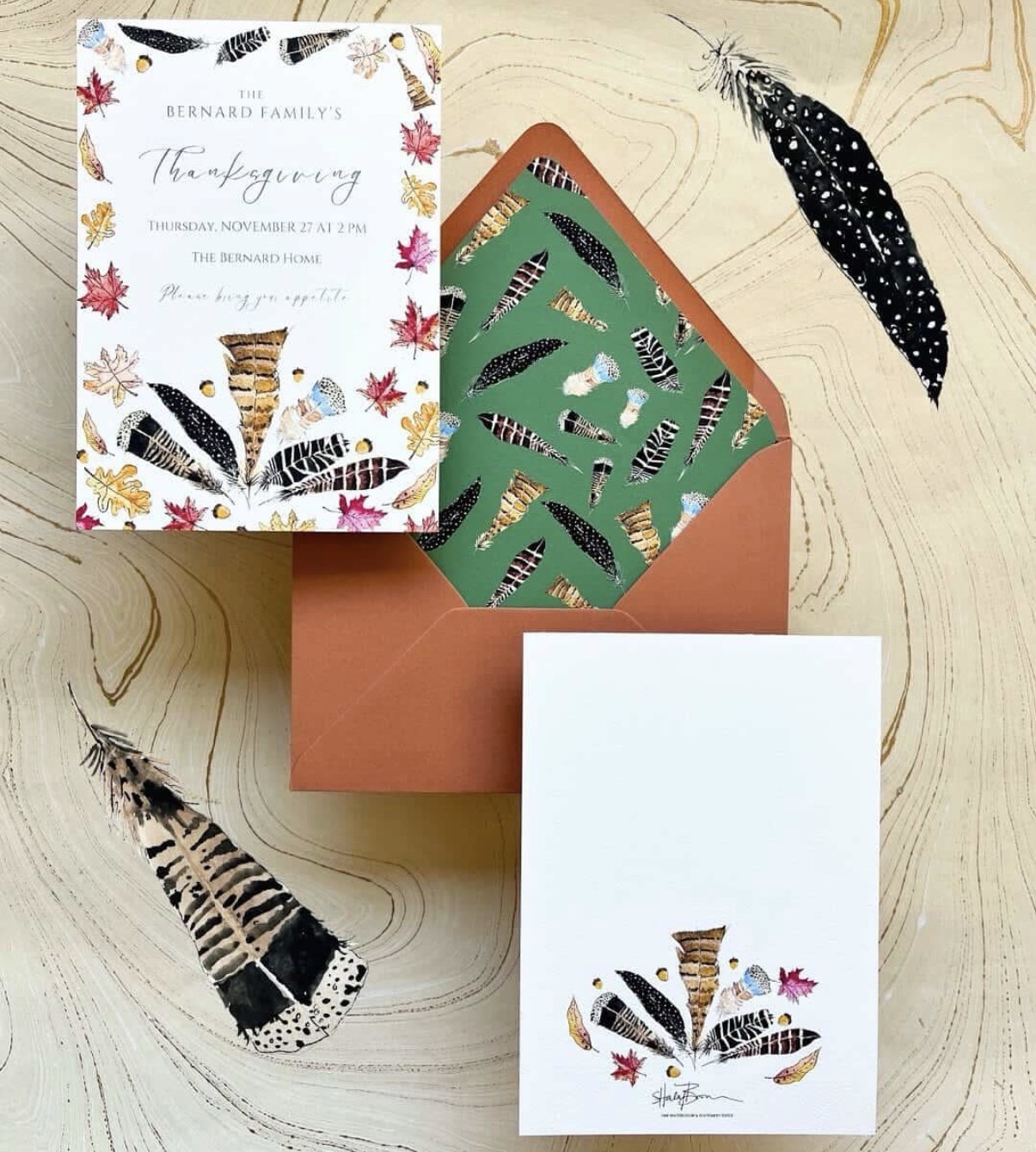
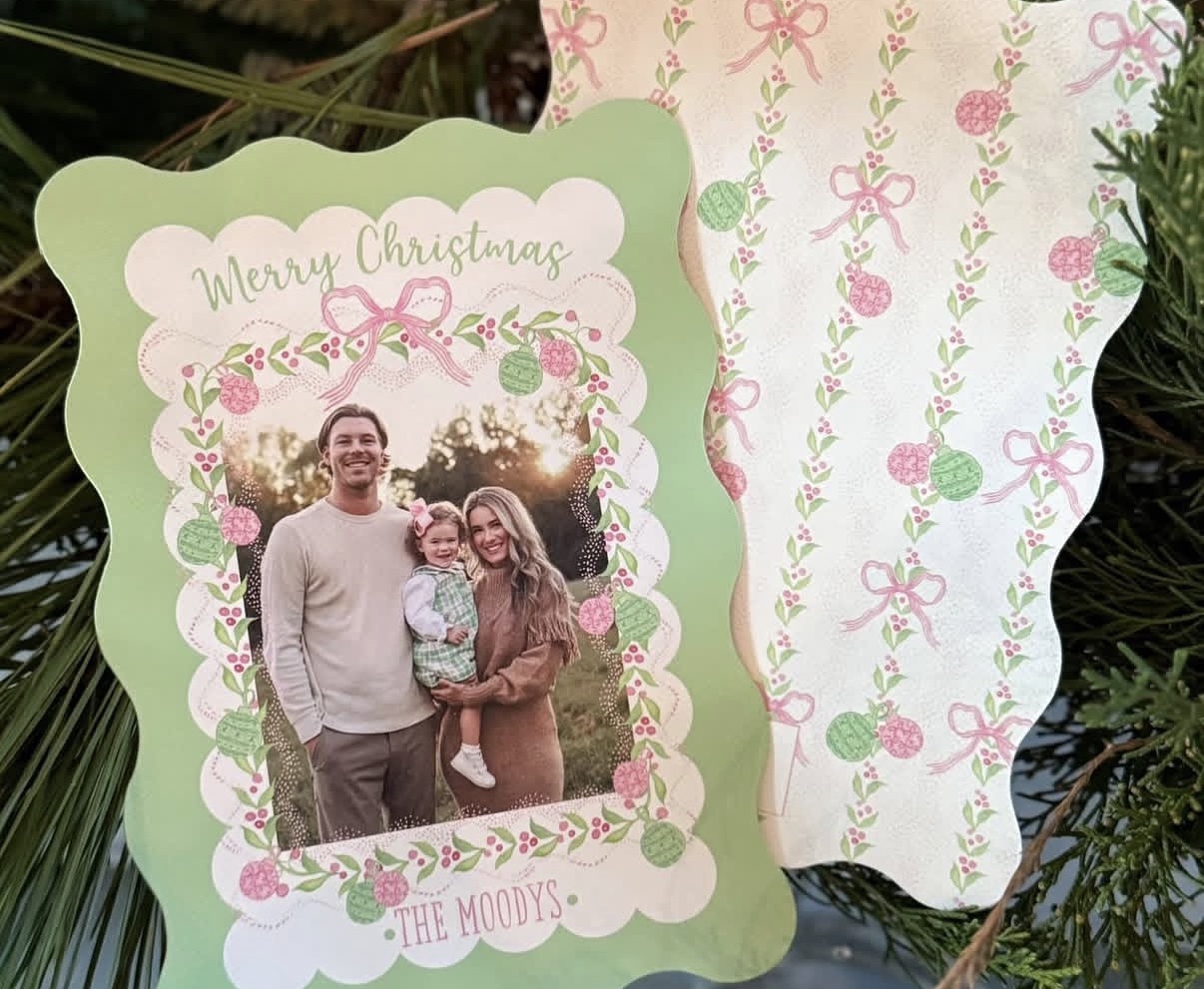
How to check back file orientation
When you select 4|4 printing, this let's us know that you would like printing on the front and back of your product. To avoid misalignment or upside-down printing, it is important to confirm that your back file is oriented correctly. Here are a few simple ways to check:
Digital Preview in the Ordering Portal
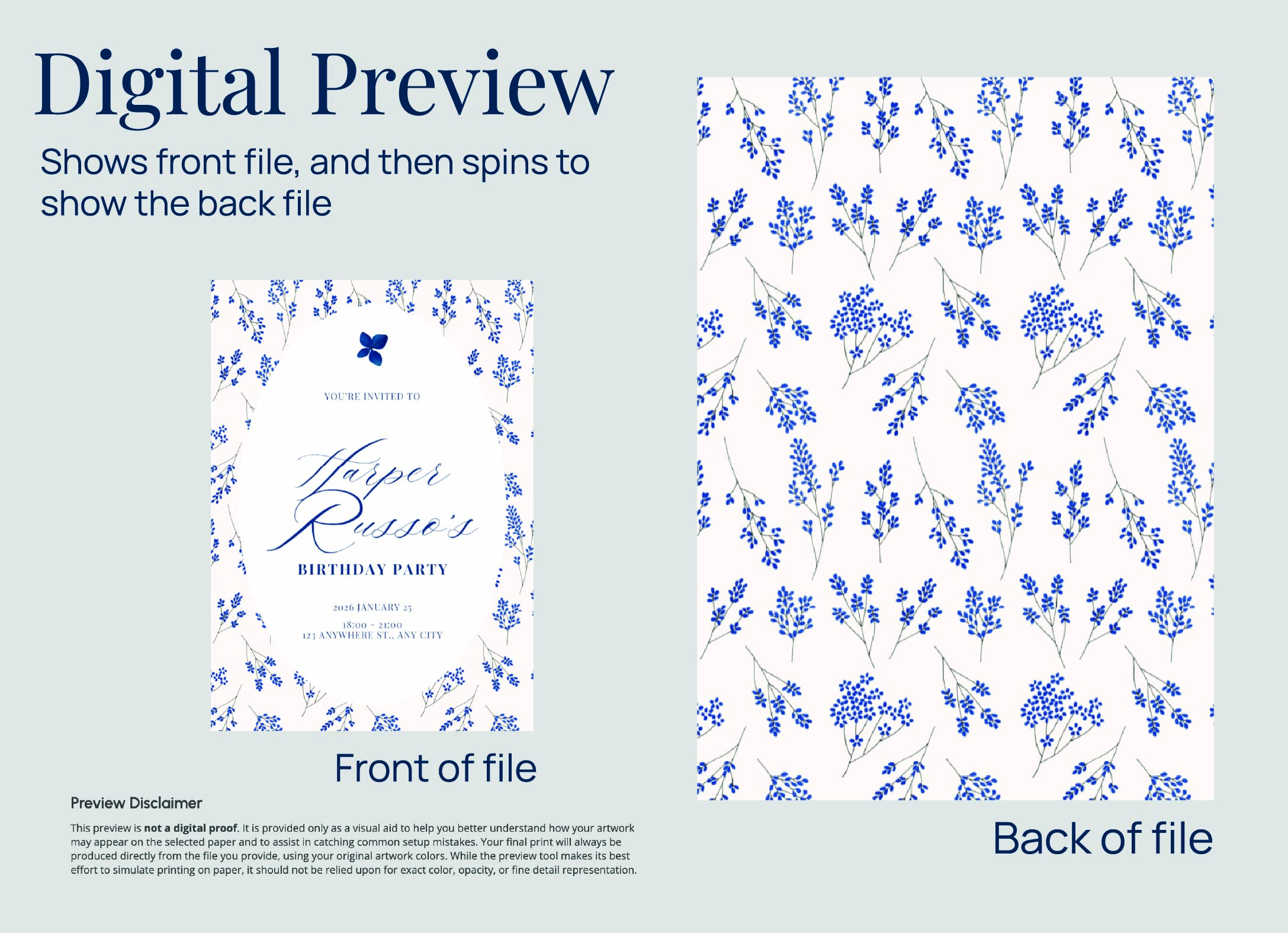
One of the easiest ways to make sure your file is the correct orientation for the product that you are printing is taking a look at the Digital Preview within the Ordering Portal.
After uploading your files, the preview generates a digital mockup showing how your front and back designs will appear once printed. This allows you to quickly confirm that both sides are aligned and oriented correctly before placing your order.
Checking the Guide on the Template for your product
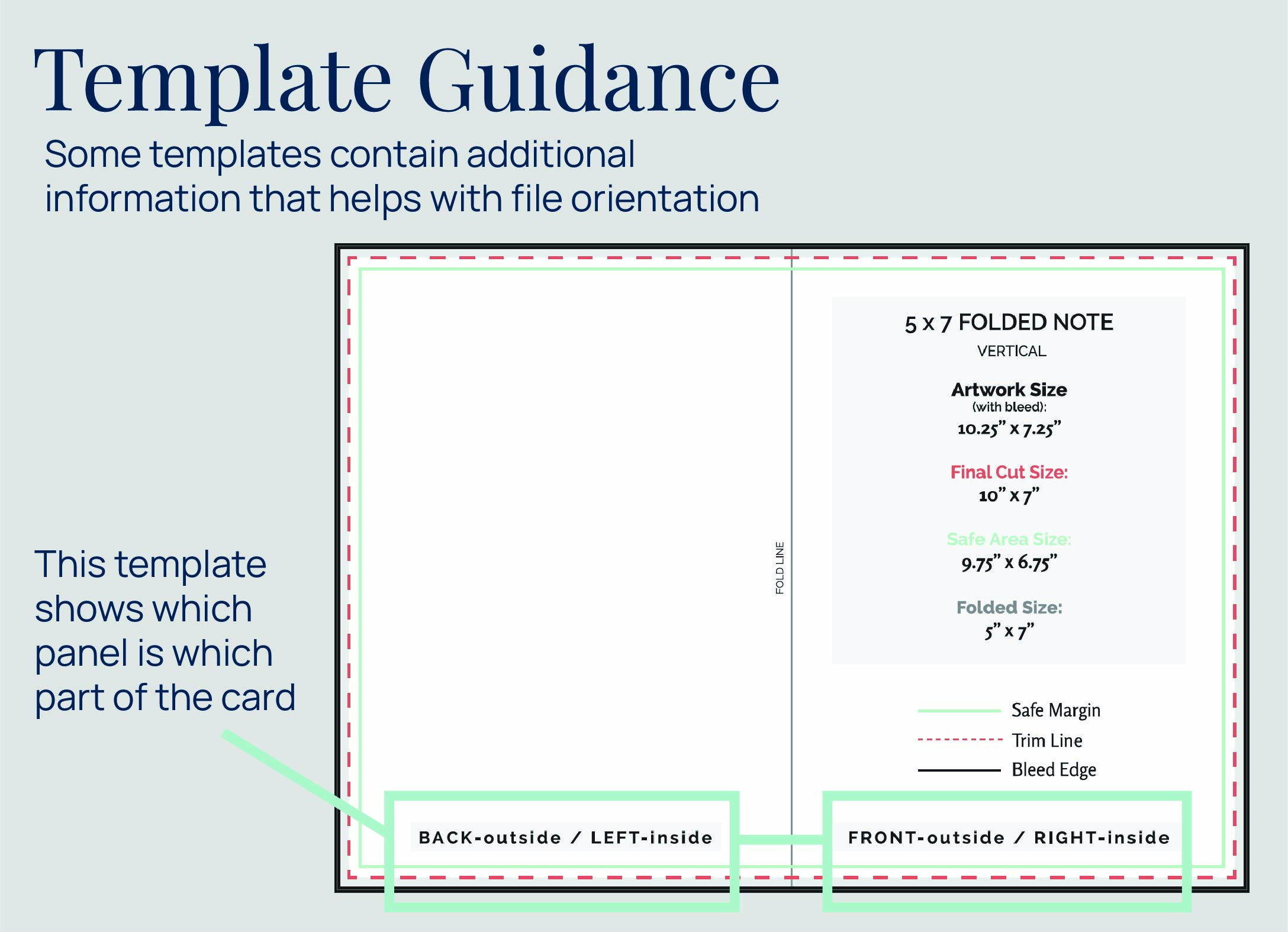
We have free online templates for most of our standard print products, and they are a valuable tool when setting up your files.
For folded cards in particular, templates include additional guides that show exactly how to position your artwork so it appears on the correct panel. Using these guides can help eliminate guesswork and ensure accurate placement.
How we print: Head to Head printing
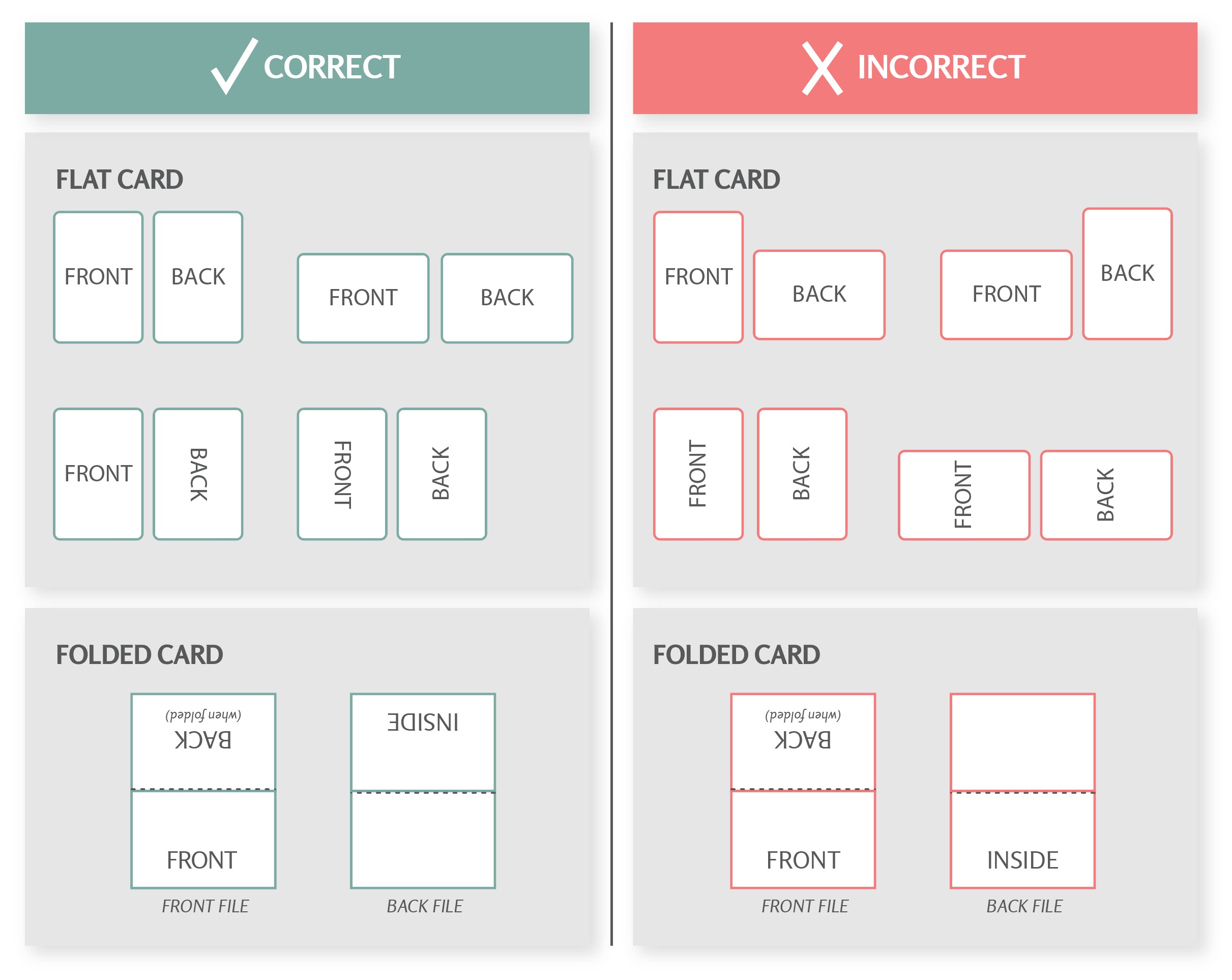
PrintsWell uses the Head to Head standard for two‑sided printing. In print terms, the Head is the top of the sheet and the Foot is the bottom. If you are ordering a front and back product that does not have the preview available, reference the image below for correct file orientation.
Related Articles:
Was this article helpful?
That’s Great!
Thank you for your feedback
Sorry! We couldn't be helpful
Thank you for your feedback
Feedback sent
We appreciate your effort and will try to fix the article