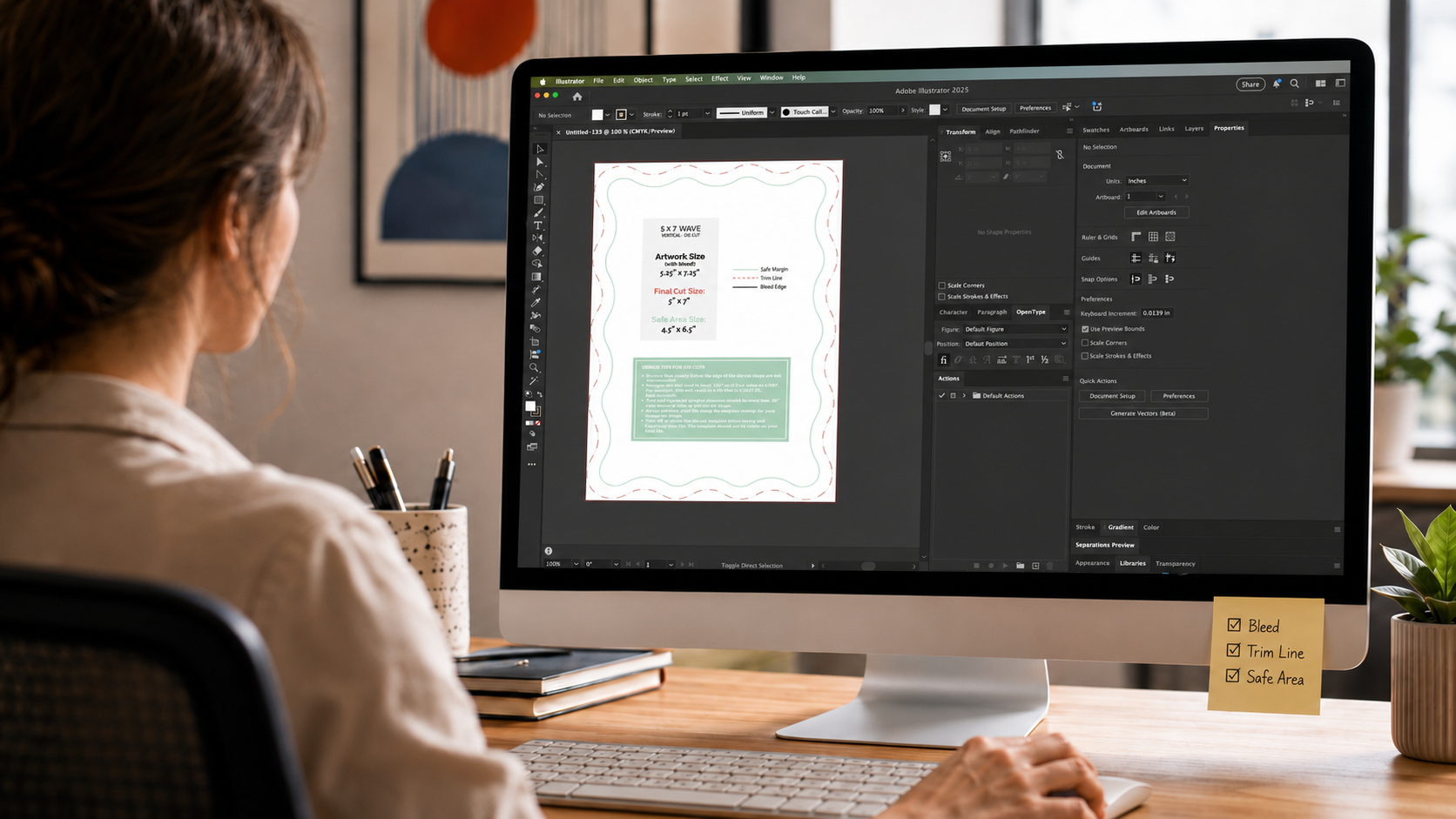
We offer stationery print templates to help you set up your artwork correctly for professional printing. Templates are available in PNG, PDF, Adobe Illustrator, and InDesign formats, and include file size, trim, and safe area guides to ensure accurate print placement.
Step 1: Download Templates
Visit our Template Download Page.
Click the product category folder to begin the download. A zip file will download and is organized by product orientation and file format.
Open the folder and select the file format for the size you plan to design.
Select the file format for the size you want to design.
Step 2: Open Design Program
Adobe Illustrator and InDesign offer the most design flexibility and are the recommended programs for using our templates.
Place the template as a background or guide layer.
Lock the template layer so it doesn’t move while you design.
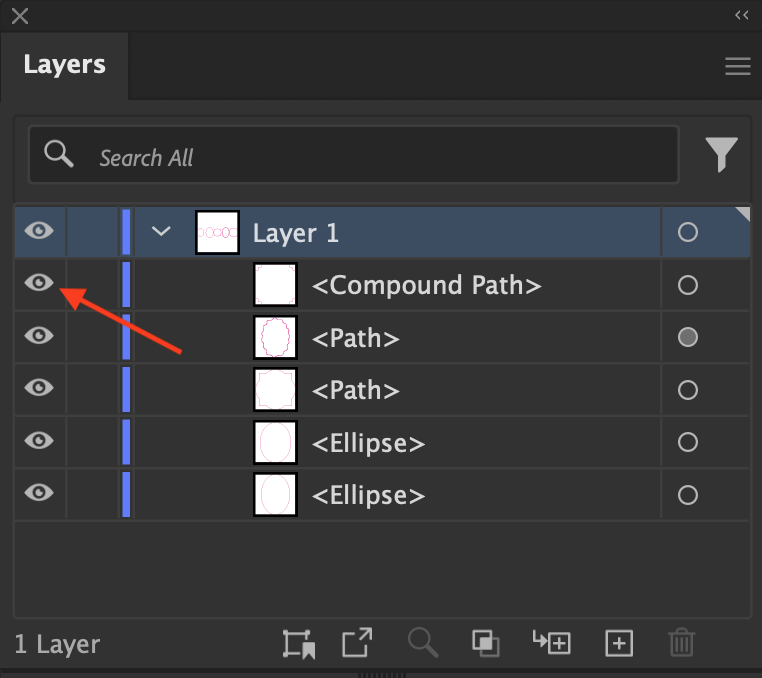
In Adobe programs, you can hide the template layer while you're designing by clicking the eye icon on this layer.
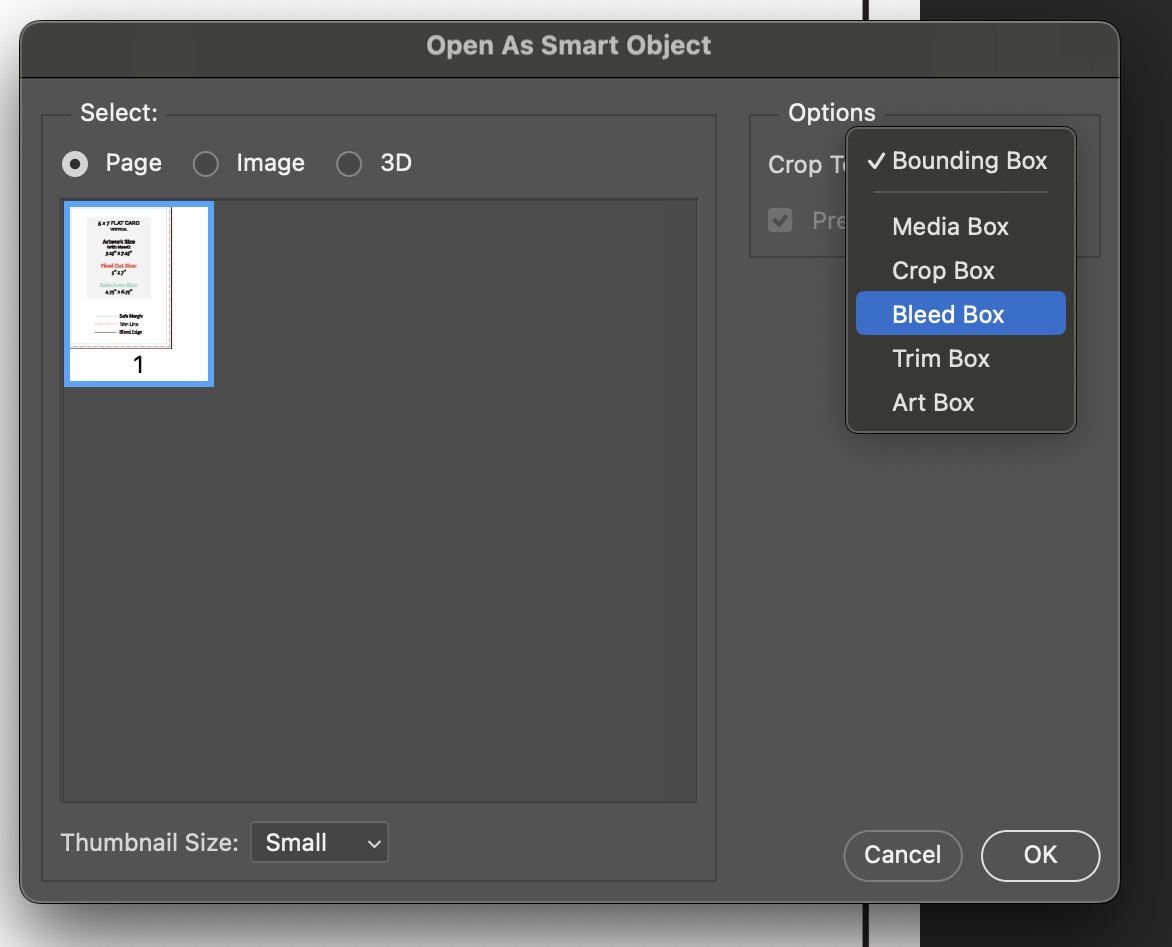
Photoshop & Canva Users: Use the PDF or PNG template version. See our File Setup in Canva article for Canva Instructions. When placing the template on your file in Photoshop, set Crop To: "Bleed Box". See above for additional Adobe tips.
Step 3: Understanding Template Guides
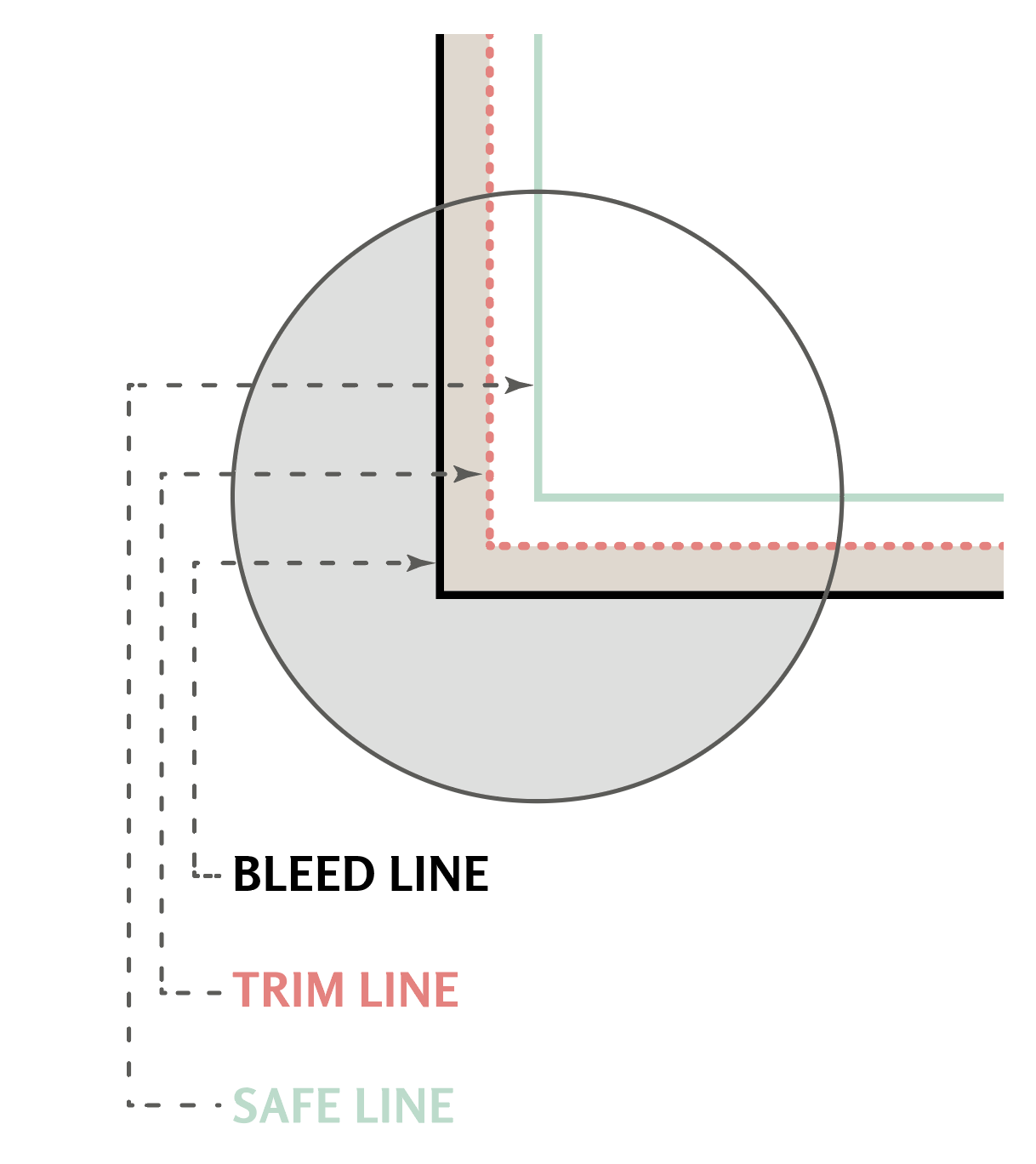
Bleed: If your design extends to the edge of the finished piece, extend the artwork to the bleed line of the template. We recommend including the bleed area in your file, even if it's blank, to avoid a warning message on our portal.
Trim Line: Indicates where the product will be cut.
Safe Area: Keep all important text and artwork you do not want too close to the edge or trimmed within the safe area to prevent it from being trimmed.
Step 4: Final File Check Before Export
Before exporting your final file, confirm the following:
File size matches the artwork size listed on the template.
Any design elements that extend to the edge of the final product also extend to the bleed/file edge.
Delete or hide the template layer before saving your final file.
If the template layer remains hidden, ensure it is set to non-printable before export.
Related Articles:
Was this article helpful?
That’s Great!
Thank you for your feedback
Sorry! We couldn't be helpful
Thank you for your feedback
Feedback sent
We appreciate your effort and will try to fix the article