
The design program you choose can have a big impact on how easily you create and prepare print-ready files as well as how much control you have over the design. The right fit often depends on your level of design experience, the kind of artwork you are creating, and how much control you need during setup and export.
There are many design programs you can use, but this guide focuses on the industry-standard Adobe Creative Cloud tools and Canva, a popular option for beginners. Adobe Illustrator, InDesign, Photoshop, and Canva can all be used to create print files, but some programs offer more flexibility and design control than others.
Quick Answer
For most stationery print files, Adobe Illustrator is our strongest all-around choice. InDesign is a great fit for layouts with repeating structure or changing text, Photoshop is best for editing artwork and images, and Canva can work well for simpler layouts and beginners. There may be other design tools out there that can also help.
Adobe Illustrator
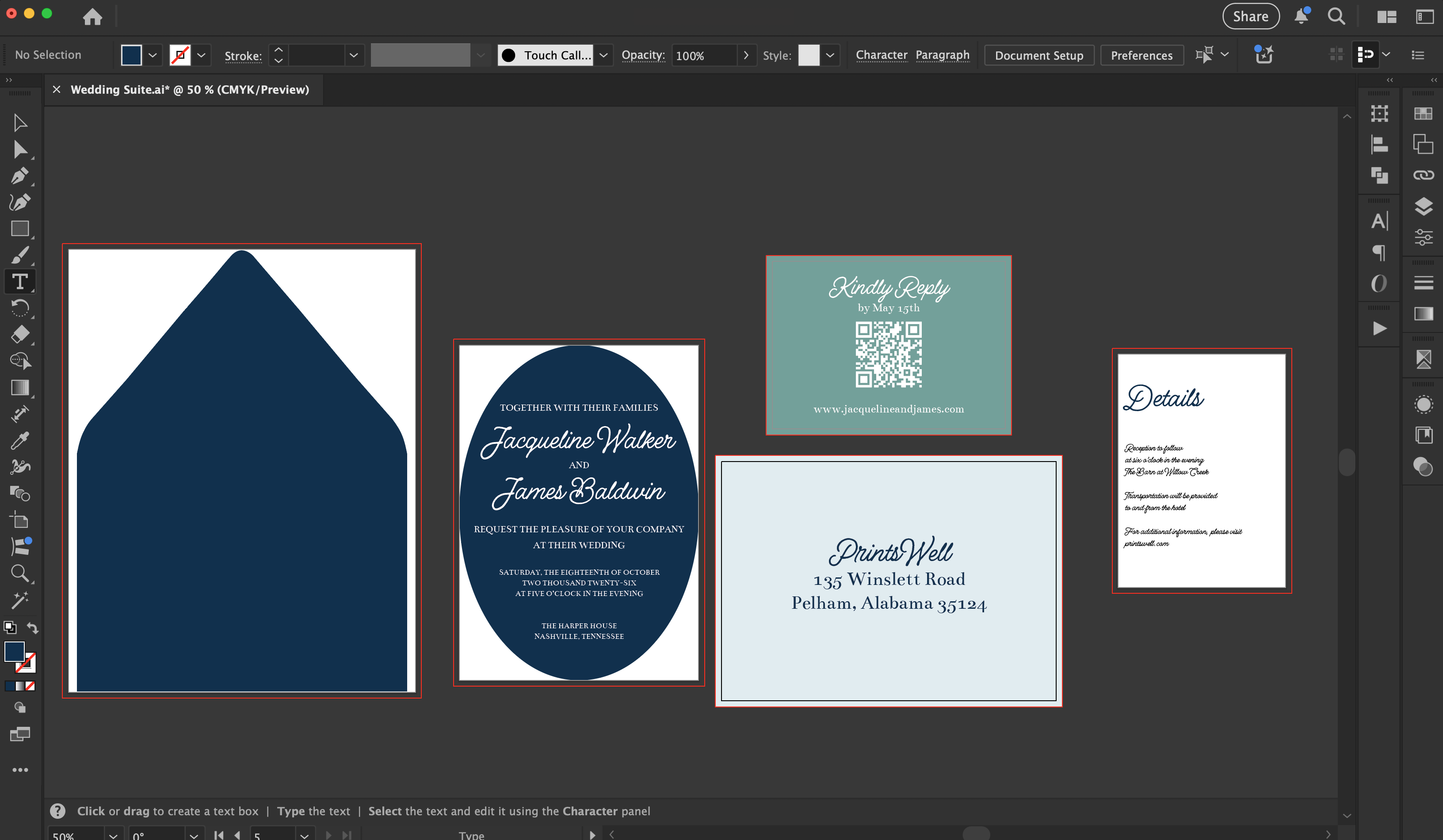
Illustrator is a strong choice for stationery pieces like invitations, RSVP cards, details cards, inserts, tags, and envelope files. It works especially well for text, logos, line art, shapes, and other vector-based design elements. Illustrator also lets you build with multiple artboards in one file, which makes it easy to keep a full suite together while designing each piece at its own size.
If you’re teaching yourself and want one Adobe program to start with, Illustrator is usually the best place to begin for stationery print files. It gives you strong control over layout, text, and print settings while still feeling flexible for individual pieces.
Adobe InDesign
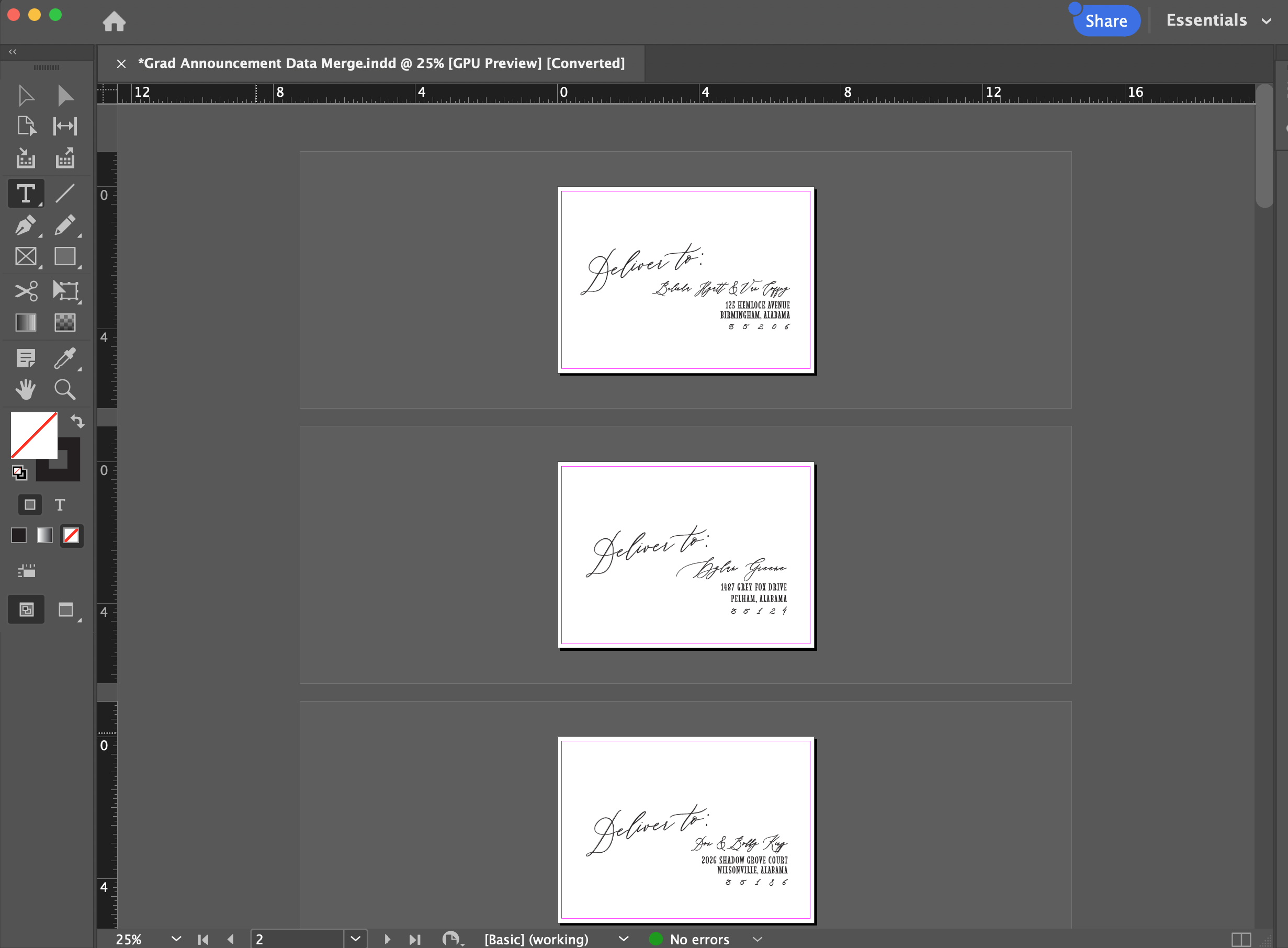
InDesign is built for layout, so it shines when a project has repeating structure or a lot of text-based content. It’s especially useful for things like guest addressing, place cards, menus, programs, and other files where the design stays consistent but the wording changes.
Illustrator and InDesign can both work well for stationery print files, and the right choice often comes down to personal preference. Both programs give you strong control over color, size, layout, and typography. InDesign tends to be especially helpful for projects with repeating layouts or variable information, like guest names, addresses, place cards, or menus.
Adobe Photoshop
Photoshop is best for editing raster artwork, photos, scans, painted elements, and textured graphics before placing them into a final layout. It also gives you direct control over image size and resolution, including the pixels-per-inch settings that affect print quality.
Photoshop is usually not the best place to build an entire stationery suite from start to finish, especially when your design depends on crisp type and precise sizing. It works best as a support tool alongside Illustrator or InDesign.
Canva
Canva can be a good starting point if you’re newer to design or creating a simpler stationery layout. Their premium version supports CMYK color on export, PDF Print and other features when you’re ready to save your file for print.
That said, Canva offers less control than Adobe programs when you need more detailed print production setup, advanced typography, or complex stationery suites. It can absolutely work for some projects, but you may outgrow it faster if you plan to create print files regularly.
Important Notes
- You do not need to master every design program at once.
- Your design program does not replace good file setup. Size, bleed, image quality, and export settings still matter.
- The best program is the one that fits both your project and your comfort level.
Related Articles
Was this article helpful?
That’s Great!
Thank you for your feedback
Sorry! We couldn't be helpful
Thank you for your feedback
Feedback sent
We appreciate your effort and will try to fix the article