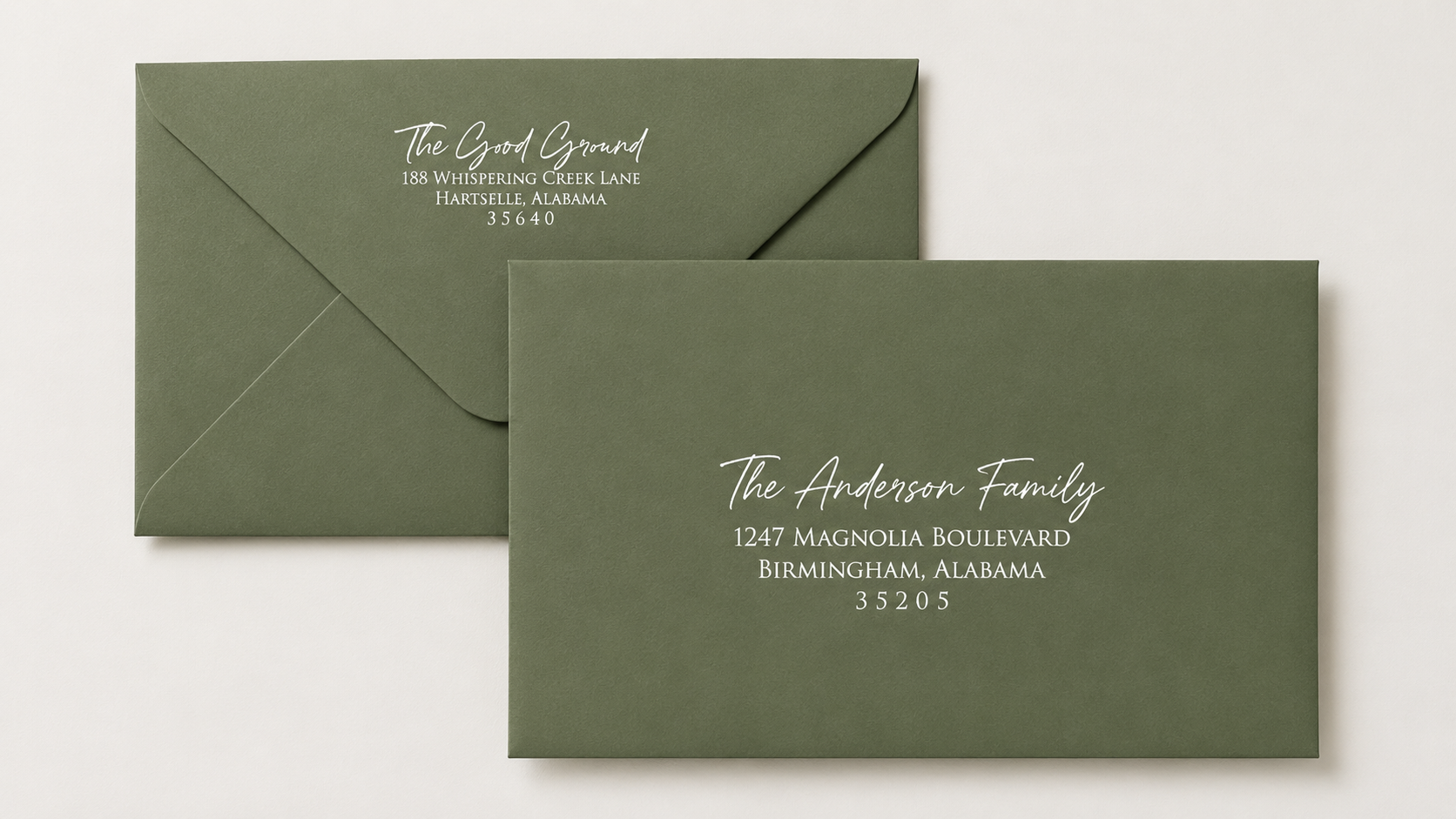
This article explains how to order printing on your envelopes, including front imprinting, back/flap imprinting, variable printing, and adding extra blank envelopes.
Before You Start
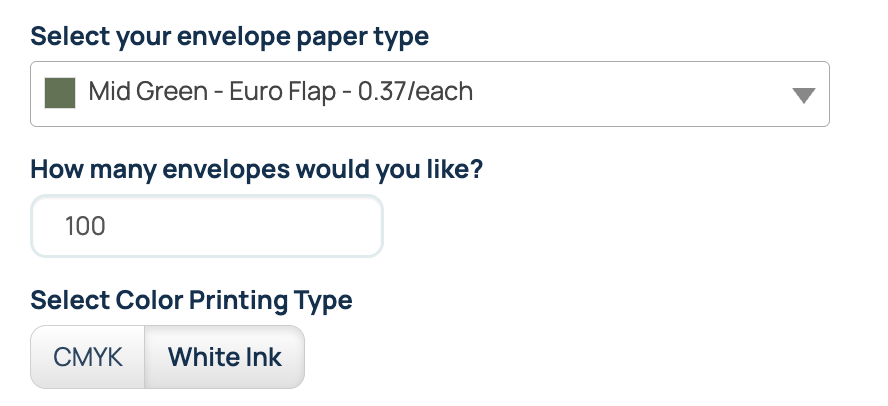
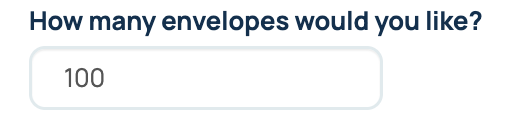
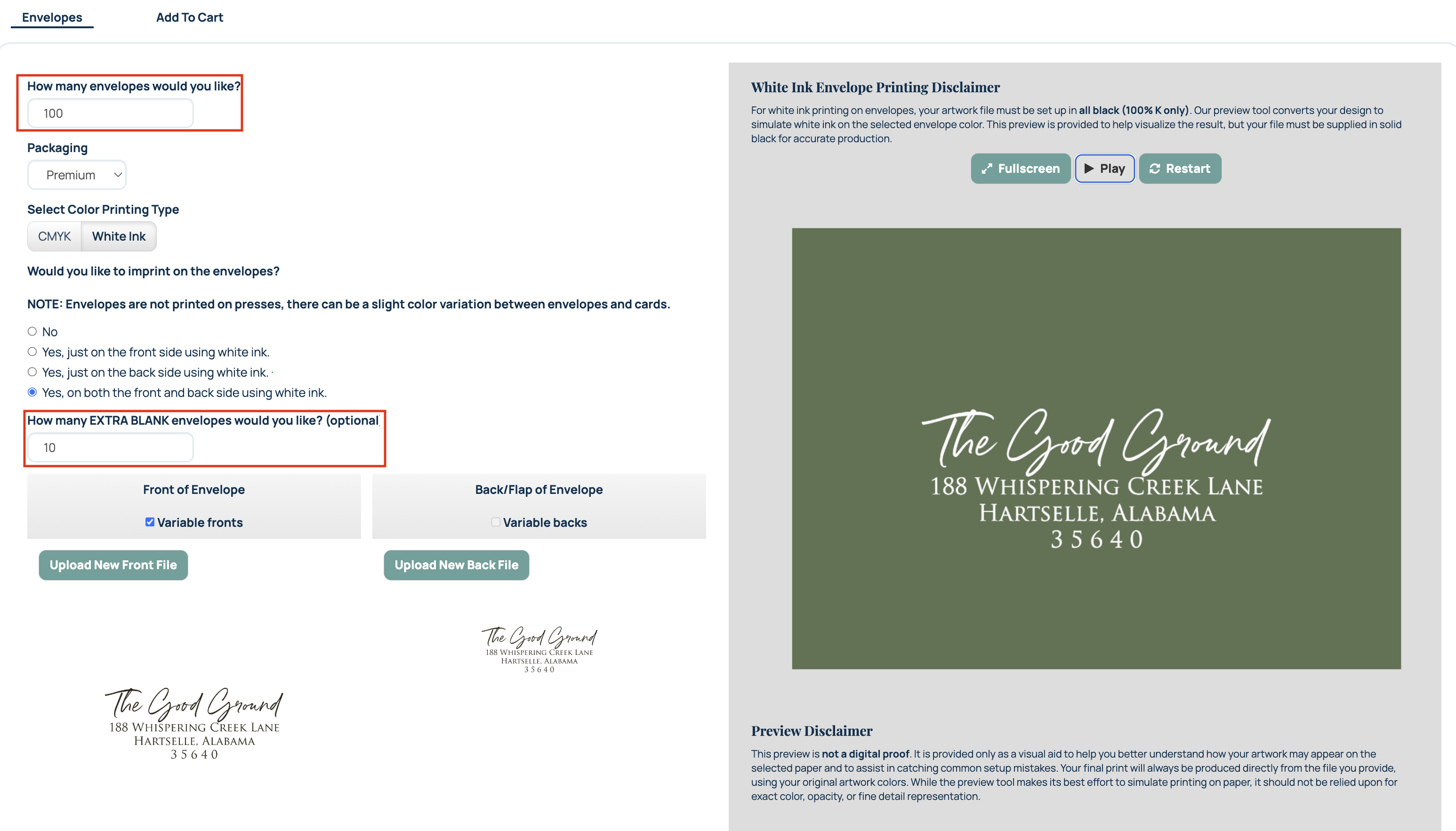
Before selecting your envelope imprinting option, enter the total number of envelopes you would like to receive and choose your envelope paper color.
For some envelope papers, you may also need to choose the printing type:
- White Ink
- CMYK Ink
Make these selections before choosing your imprinting option and uploading your files.
Choose Your Envelope Imprinting Option
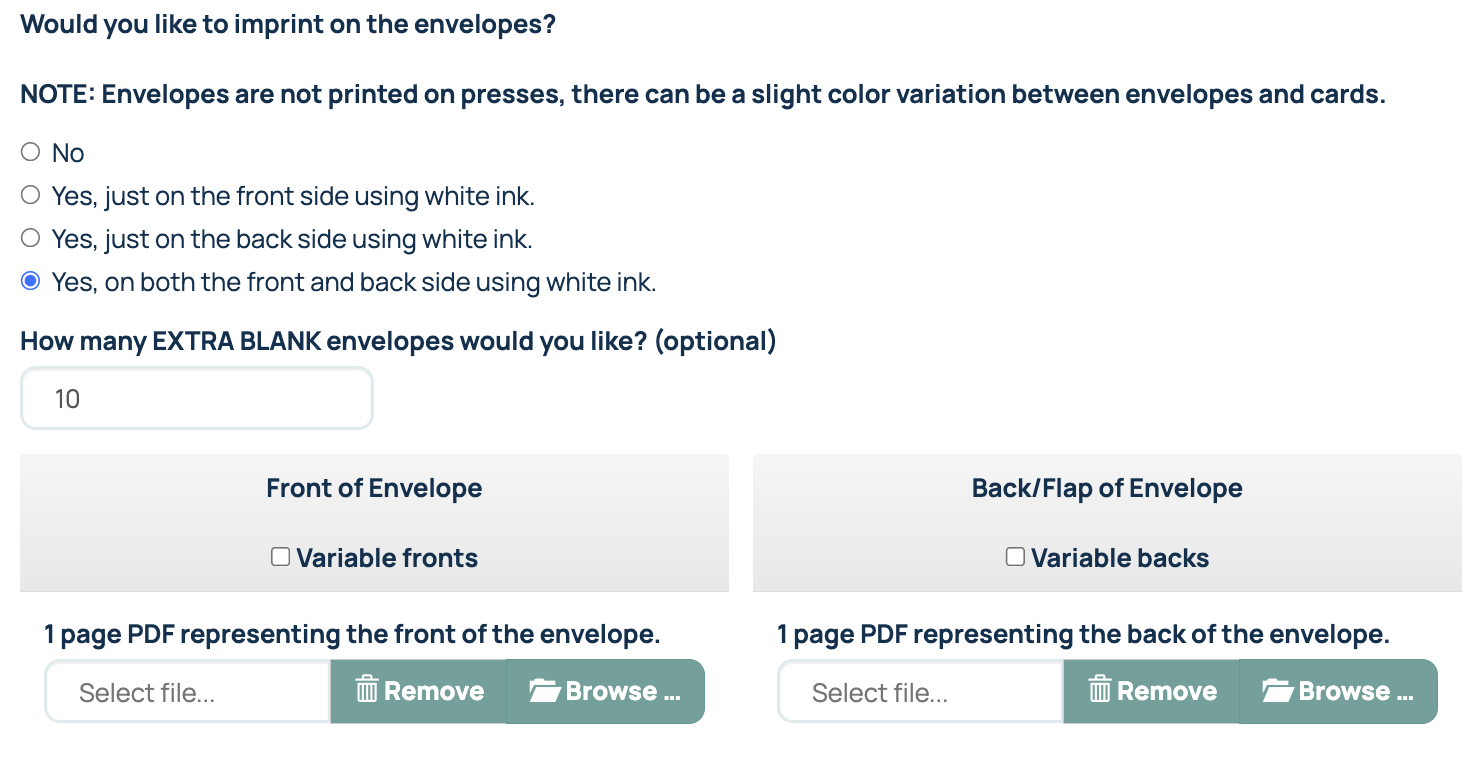
Choose how you would like your envelopes printed. Depending on the envelope type, you may see options such as:
No envelope imprinting
Front imprinting only
Back/flap imprinting only
Front and back/flap imprinting
Based on your selection, the matching file upload section will appear.
For example:
If you select front imprinting only, you’ll see a front file upload section.
If you select back/flap imprinting only, you’ll see a back/flap file upload section.
If you select front and back/flap imprinting, you’ll see upload sections for both files.
Upload Your Envelope Files
Upload a print-ready PDF for each side of the envelope you are printing.
- Use the Front of Envelope upload section for artwork or addressing that prints on the front of the envelope.
- Use the Back/Flap of Envelope upload section for artwork that prints on the back or flap of the envelope.
- If you are printing both sides, make sure each file is uploaded in the correct section.
Use Variable Printing, If Needed
Above each file upload section, you may see a checkbox for Variable Fronts or Variable Backs.
Check the variable option if you want each envelope to have different printing, such as guest addressing.Variable printing can only be applied to the front file or the back/flap file, not both.
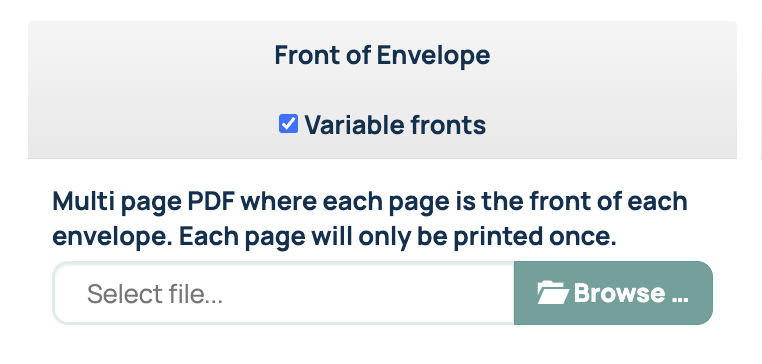
For the side marked as variable, the quantity printed is based on the number of pages in that file. If you also upload a static file for the other side of the envelope, meaning the same artwork prints on every envelope, that file will print on the full envelope quantity entered under How many envelopes would you like?
Add Extra Blank Envelopes, If Needed
Any time you select envelope imprinting, a field will appear asking how many blank envelopes you would like.This is an optional add-on for completely blank envelopes to be included with the printed envelope set.Use this field only if you want extra envelopes with no imprinting.

Imprinted Envelope Ordering Example
If you order:
100 envelopes total
78 variable printed guest addresses on the front
A printed return address on the back/flap
10 extra blank envelopes
You will receive:
78 envelopes with front and back/flap imprinting
22 envelopes with back/flap imprinting only
10 completely blank envelopes
Important Notes
Upload print-ready PDF files for envelope imprinting.
Variable printing can only be applied to one side of the envelope.
The imprinting charge is per envelope.
Variable envelope quantity is based on the number of pages in the variable file.
Extra blank envelopes are completely unprinted envelopes added to the set.
Related Articles
Was this article helpful?
That’s Great!
Thank you for your feedback
Sorry! We couldn't be helpful
Thank you for your feedback
Feedback sent
We appreciate your effort and will try to fix the article