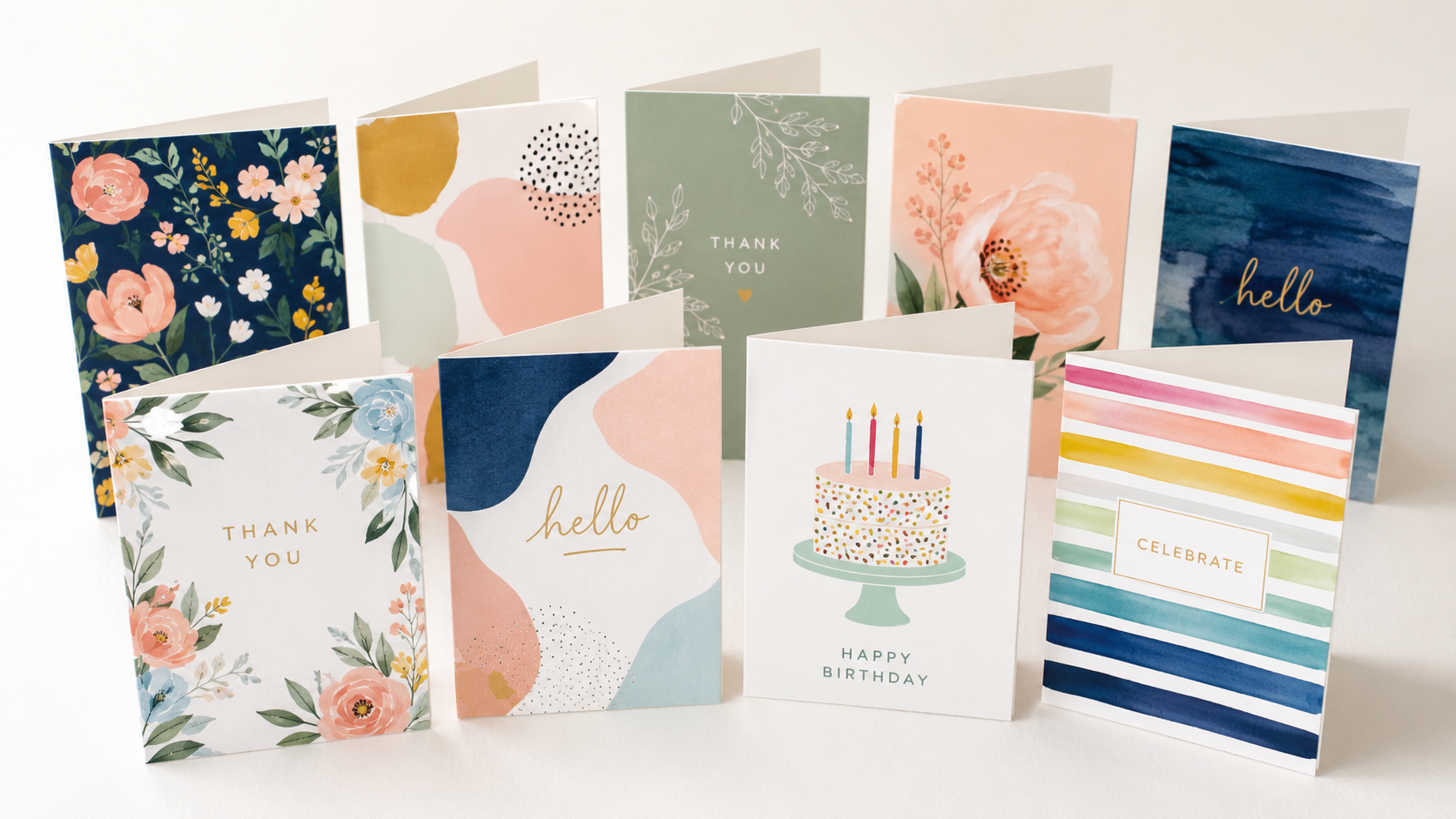
Most PrintsWell products can be ordered as variable print jobs. This means each piece within the set can be printed with a different design.
Variable printing is often used for products like:
- Place cards with individual names
- Table cards
- Greeting card assortment sets
- Daily affirmation cards
- Desk calendar cards
How to Order a Variable Item
- Start your order and select the product you would like to order.
- On the Product tab, look for the prompt Will this be a variable print job?
- Select Yes.
- Upload your multi-page PDF.
- Continue through the ordering process like you would for a standard order.
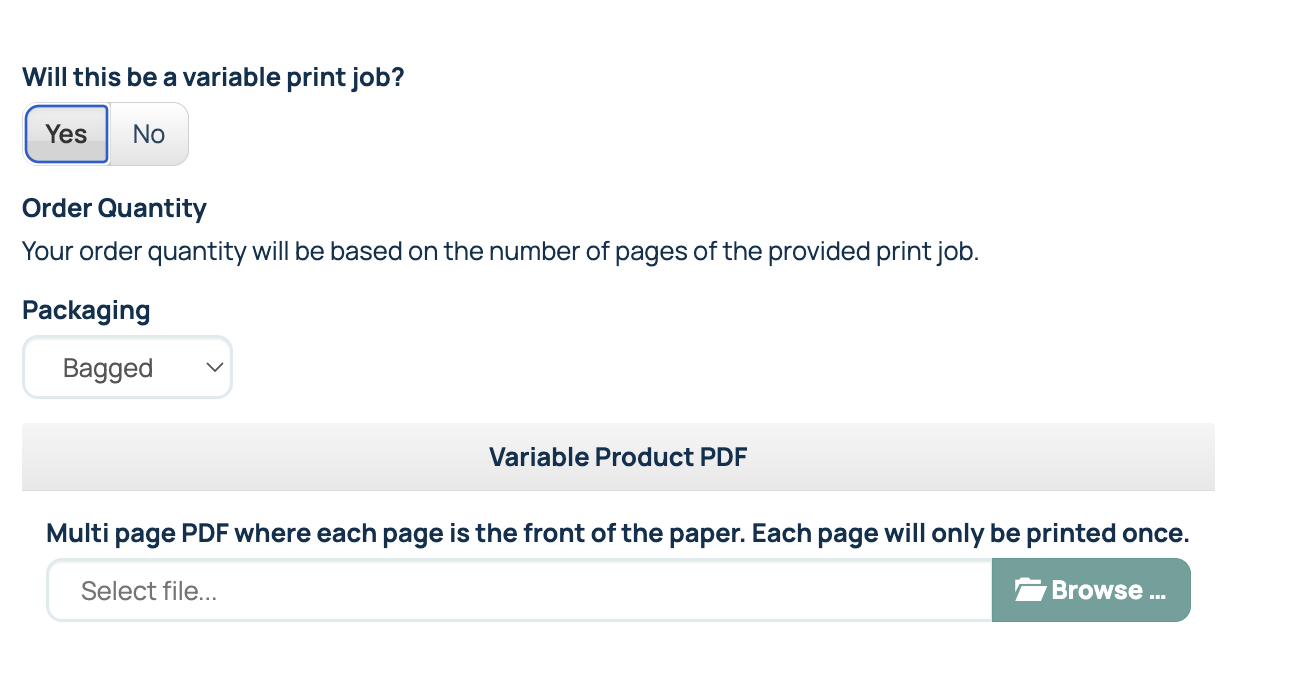
After you select Yes, the quantity dropdown will disappear. This is because the order quantity is based on the number of pages in your file.
Quantity and pricing will update once your multi-page PDF is uploaded.
Creating a Quote for a Variable Item
If you need to create a quote but do not have the final multi-page PDF ready, set up the quote as a non-variable item and select the quantity you need.
Then manually add the variable printing charge to the product cost. The variable flat fee can be found on our pricing page at the top of our pricing tables.
Important Note
Variable print jobs should be uploaded as multi-page PDFs. Each page of the PDF should represent one printed piece.
Important Note:
- We only print the number of pages within your file. Pages are not duplicated in the print run.
- If the back or the front of the card is the same for all cards within the set, you must still include that page duplicated within your file for each printed card.
- Variable printing is not available on all items. If the product you are ordering does not have the prompt, variable printing is not available.
Related Articles:
Was this article helpful?
That’s Great!
Thank you for your feedback
Sorry! We couldn't be helpful
Thank you for your feedback
Feedback sent
We appreciate your effort and will try to fix the article